Test Manager
Test Manager is where you write tests for an integration and run them. A test group points at one integration; the test cases inside it each send a payload through that integration and check what comes back.
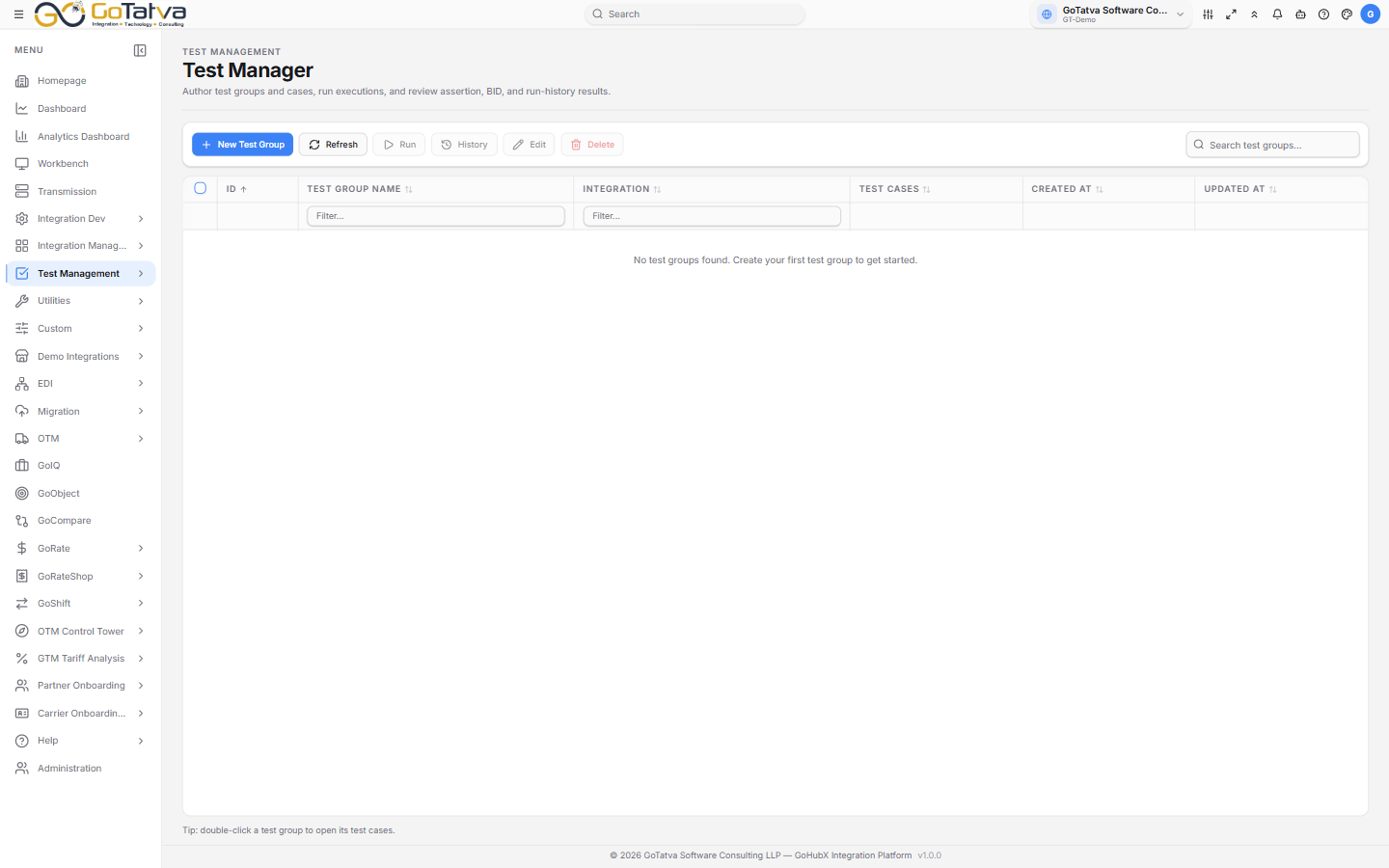
The Test Groups table. Double-click a group to open its test cases.
A group needs an integration; a run needs at least one case.
Before you start
- Pick the right project in the top bar. Everything on this screen belongs to the selected project, and switching projects changes what you see.
- The project needs at least one integration already configured — the test group form will not let you save without choosing one.
Tabs
The screen opens on the base tab, which lists the test groups. Opening a group adds a closable tab beside it:
| Tab | What it holds |
|---|---|
| Cases: <group> | The test cases in that group |
| History: <group> | Every run of that group |
Several groups can be open at once. Close a tab when you are finished with it.
Test groups
| Action | Notes |
|---|---|
| New Test Group | Name, description and the integration to test |
| Refresh | Re-reads the list |
| Run | Runs every case in the selected group |
| History | Opens the group's run history in a new tab |
| Edit | |
| Delete | Also deletes every test case in the group |
Run, History and Edit need exactly one row selected. Run is also disabled while the group has no test cases.
| Column | Notes |
|---|---|
| ID | |
| Test Group Name | Filterable |
| Integration | Filterable |
| Test Cases | How many cases the group holds |
| Created At | |
| Updated At |
Deleting asks first — the confirmation spells out that the test cases go too.
Double-click a test group to open its test cases.
Test cases
Inside a group, New Test Case opens a form with four tabs:
| Tab | What goes in it |
|---|---|
| Basic Information | Name, description, Execute Outbound, and the input file or resource |
| Input Payload | The payload the case sends |
| Assertions | A path such as customer.id and the value it must hold |
| BIDs | Key/value pairs to match on |
| Column | Notes |
|---|---|
| ID | |
| Test Case Name | Filterable |
| Execute Outbound | Yes / No |
| Assertions | How many the case carries |
| BIDs | How many the case carries |
| Created At | |
| Updated At | |
| Status | A switch — Active or Inactive |
Toolbar: New Test Case, Refresh, Run, View, Edit, Delete. View only opens once the case has been run at least once.
Running one case
Run opens the Test Execution dialog. It shows a progress bar while the case runs, then the outcome:
- A status pill.
- Execution Time, Transmission ID and Transaction ID. The last two are clickable and open the matching transmission in a new window.
- Tabs for Input, Output, Assertions and BIDs, plus an Error Log tab when the run produced one.
Retry runs the case again without closing the dialog.
Running a whole group
Run on a test group opens the Test Group Execution dialog with Run ID, Total Tests, Start Time and End Time, then Passed, Failed and Total when it finishes.
The run continues in the background, so you can close the dialog — use Go to History to watch it there. Close stays disabled while the run is still in progress.
History
The history tab lists one row per run:
| Column | Notes |
|---|---|
| Test Group Run ID | |
| Status | |
| Test Counts | Total, Passed and Failed |
| Start Time | |
| End Time | |
| Executed By |
Expand a row for the per-case detail — Test Result ID, Test Case Name, Test Case ID, Status, Assertions, BIDs and Duration (ms).
Auto Refresh keeps the list current while a run is going; the button beside it sets the interval, between 5 and 300 seconds.
Statuses
Run and result statuses come straight from the test engine:
| Status | Meaning |
|---|---|
| SUCCESS, PASS, PASSED, COMPLETED | The run met every assertion |
| FAILED, FAIL | An assertion did not hold |
| ERROR | The run itself could not complete |
| PARTIAL_SUCCESS | Some cases in the group passed, others did not |
| RUNNING, IN_PROGRESS | Still going |
If the list looks empty
An empty table reads the same whether there is genuinely nothing there or the list could not be loaded. Press Refresh before concluding that a group or case is missing.
Access
Access to Test Manager is all or nothing: anyone whose role includes it can create, edit, run and delete. There is no view-only level for this screen — if someone should not be changing tests, leave Test Manager out of their role.