Signing in
Signing in is the same for every module. Once you are in, the project and customer you choose here decide what the rest of the platform shows you.
Signing in
Open your browser and go to your sign-in page, for example
https://<your-environment>.gohubx.cloud/signin.
Option A - Username and password
- Enter your Customer Name.
- Enter your Username and Password.
- Click Submit.
Option B - Single Sign-On (SSO)
- Enter your Customer Name only - no username or password needed.
- Click Login with Customer SSO and complete sign-in through your organisation's identity provider.
Which options you see depends on how your organisation is set up. If SSO is enforced, the username and password fields do not appear.
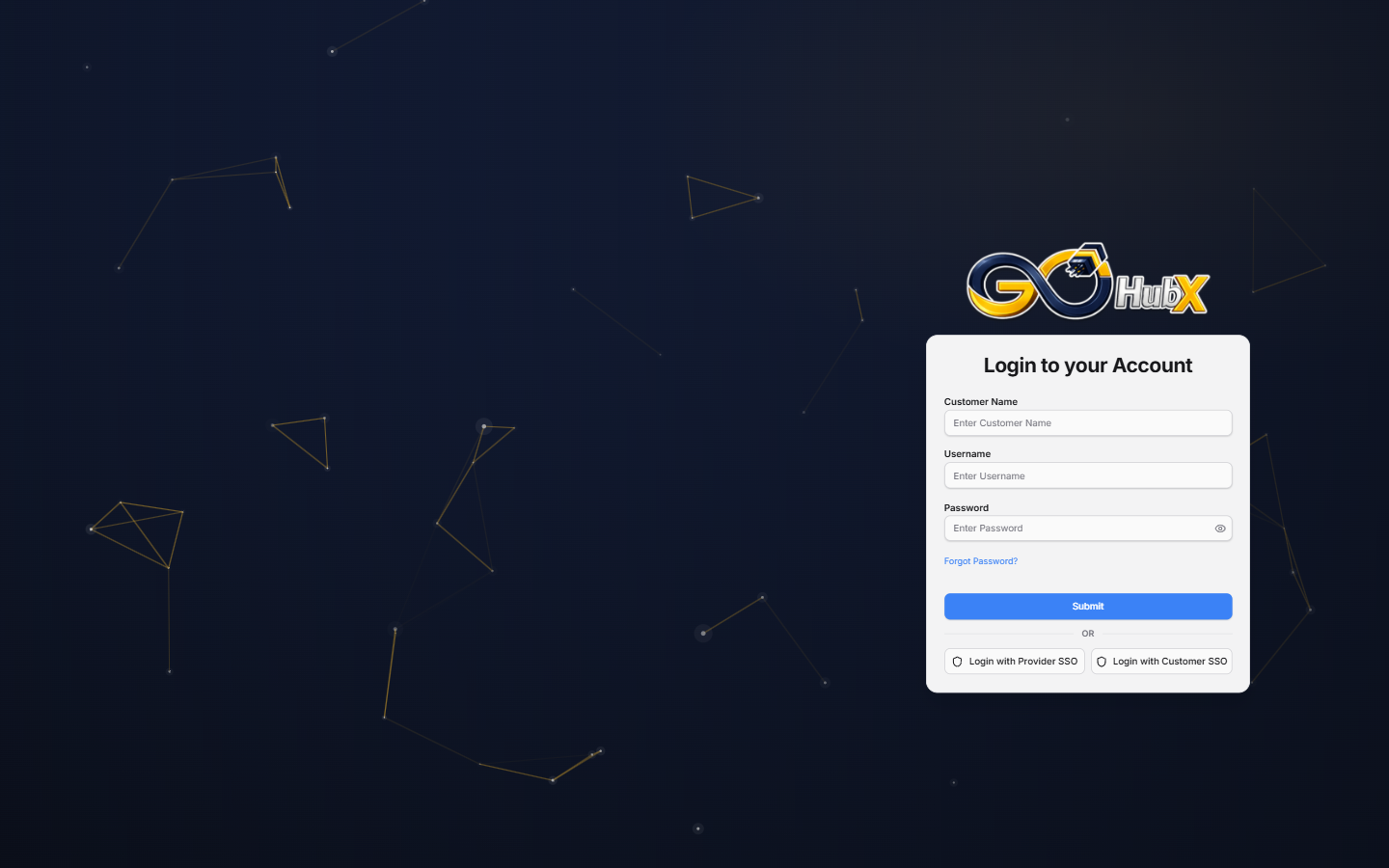
The sign-in page - standard login on top, SSO options below.
Choosing your project and customer
After signing in you land on the Homepage. Use the globe selector at the top right to choose your project - your customer is shown above it, and the project beneath.
Uploads, approvals, dashboards and every module's settings follow the project and customer you pick here. If something you expect is missing, check this selector first.
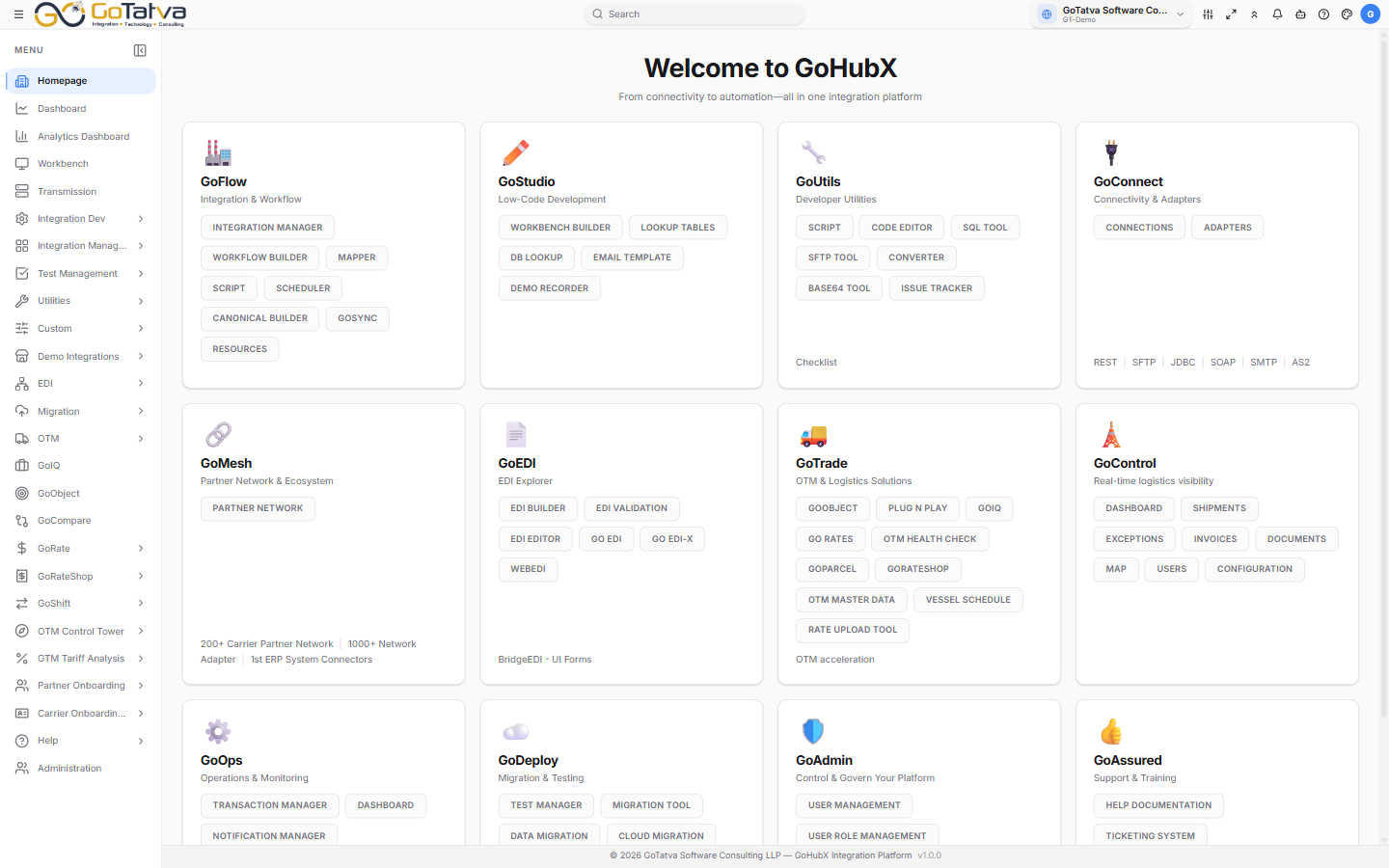
After sign-in - the homepage, with sidebar navigation on the left and the project and customer selector at the top right.
If you cannot sign in
| What you see | What it usually means |
|---|---|
| Customer name not recognised | The customer name is wrong, or your account is on a different environment |
| Username or password incorrect | Ask your administrator to reset your password - see Users |
| SSO button missing | SSO is not configured for your organisation; use username and password |
| Signed in, but a module is missing | Your role does not include it, or the project selection is wrong |
Accounts, roles and password resets are handled by your administrator. See Users.