Partner trackers
Three screens - Supplier, Carrier and Customer - that work identically on their own partner type.
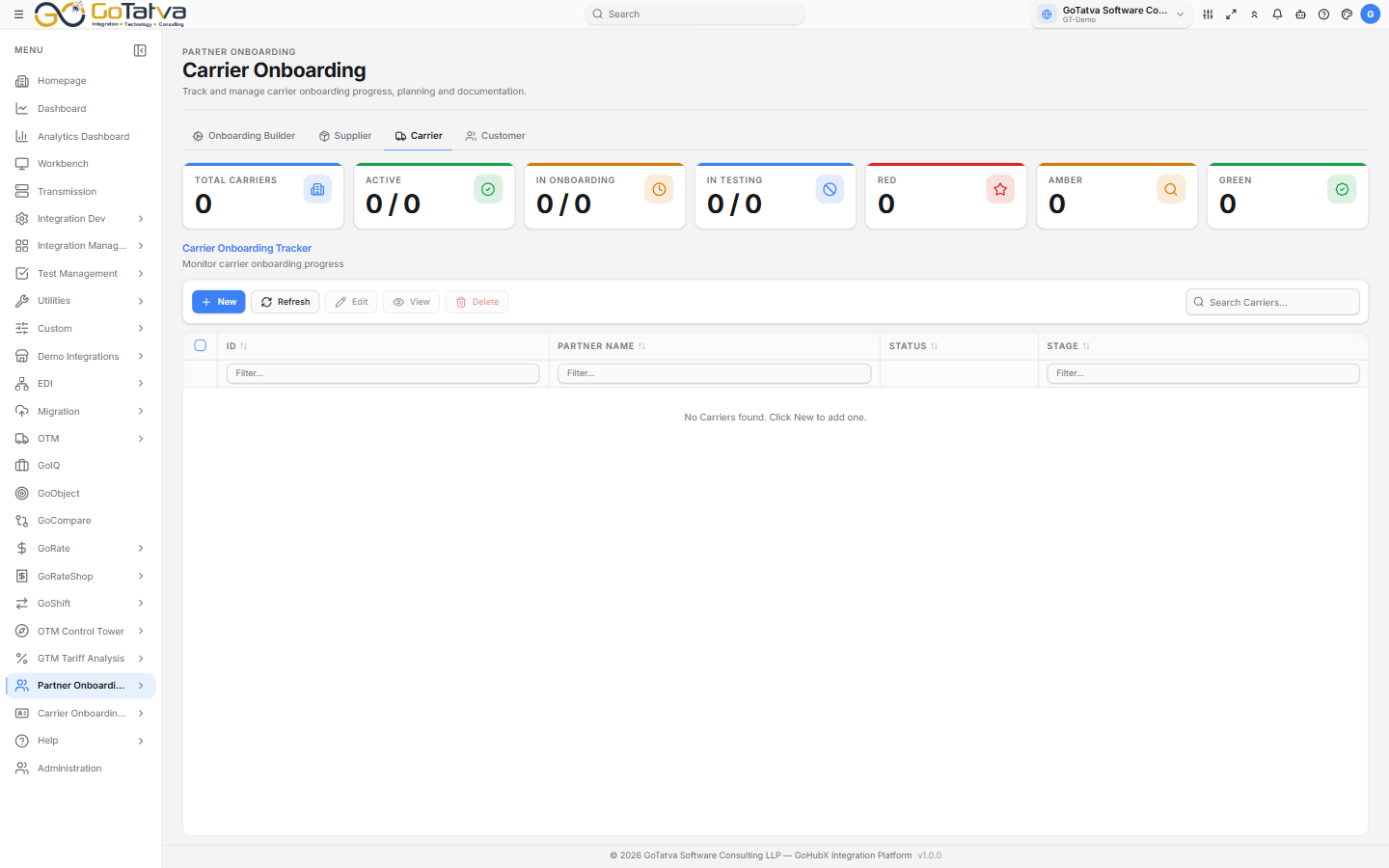
Seven counts across the top, the partners below.
The overview
Total, Active, In Onboarding, In Testing, and a red, amber and green count.
The traffic light is how a partner is tracking against its plan - green on course, amber worth watching, red off track. Opening a partner shows the same thing worded as Healthy, Monitor or Off Track.
Adding a partner
New first asks which form template to use - Use This Form on the one you want. Only templates of this partner's type are offered.
Then the form itself: the partner's name, your template's own fields grouped by section, and two blocks that are always there.
Planning
| Field | Notes |
|---|---|
| Current Stage | Set to Onboarding for a new partner |
| Stage Start Date | Set to today |
| Go-Live Date | Required |
The Onboarding Roadmap below takes a row per stage with its start and end dates, and the days between. Stages are Onboarding, Testing, UAT, Active and On Hold.
It defaults to the latest end date across your roadmap stages, and you can override it. A partner cannot be saved without one - so either give a roadmap stage an end date, or type the Go-Live date yourself.
Documentation
A row per document: its Name, Type - URL, PDF, Word, Excel, XML or JSON
- the document itself as a link or an upload, and whether it is Pending or Approved.
The list
ID, Partner Name, Status and Stage. The status switch activates and deactivates a partner without deleting it.
Stages read Onboarding, Testing, UAT, Production, Active or Inactive.
Clicking a row opens a panel with the stage timeline, the current stage, the planning dates and the created and updated timestamps - enough to answer "where is this partner up to?" without opening the record.