Getting Started
Signing in
Open your browser and go to your GoRate sign-in page, for example
https://<your-environment>.gohubx.cloud/signin.
Option A - Username & password
- Enter your Customer Name.
- Enter your Username and Password.
- Click Submit.
Option B - Single Sign-On (SSO)
- Enter your Customer Name only - no username or password needed.
- Click Login with Customer SSO and complete sign-in through your organisation's identity provider.

The GoRate sign-in page - standard login on top, SSO options below.
Selecting your project and customer
After signing in you land on the Dashboard. Use the globe selector at the top right to choose your project (e.g. North America) - your customer (e.g. KRAFTHEINZ) is shown beneath it.
Uploads, approvals, dashboards and the GoRate Setting page all follow the project and customer you pick here. If a file you expect is missing, check this selector first.
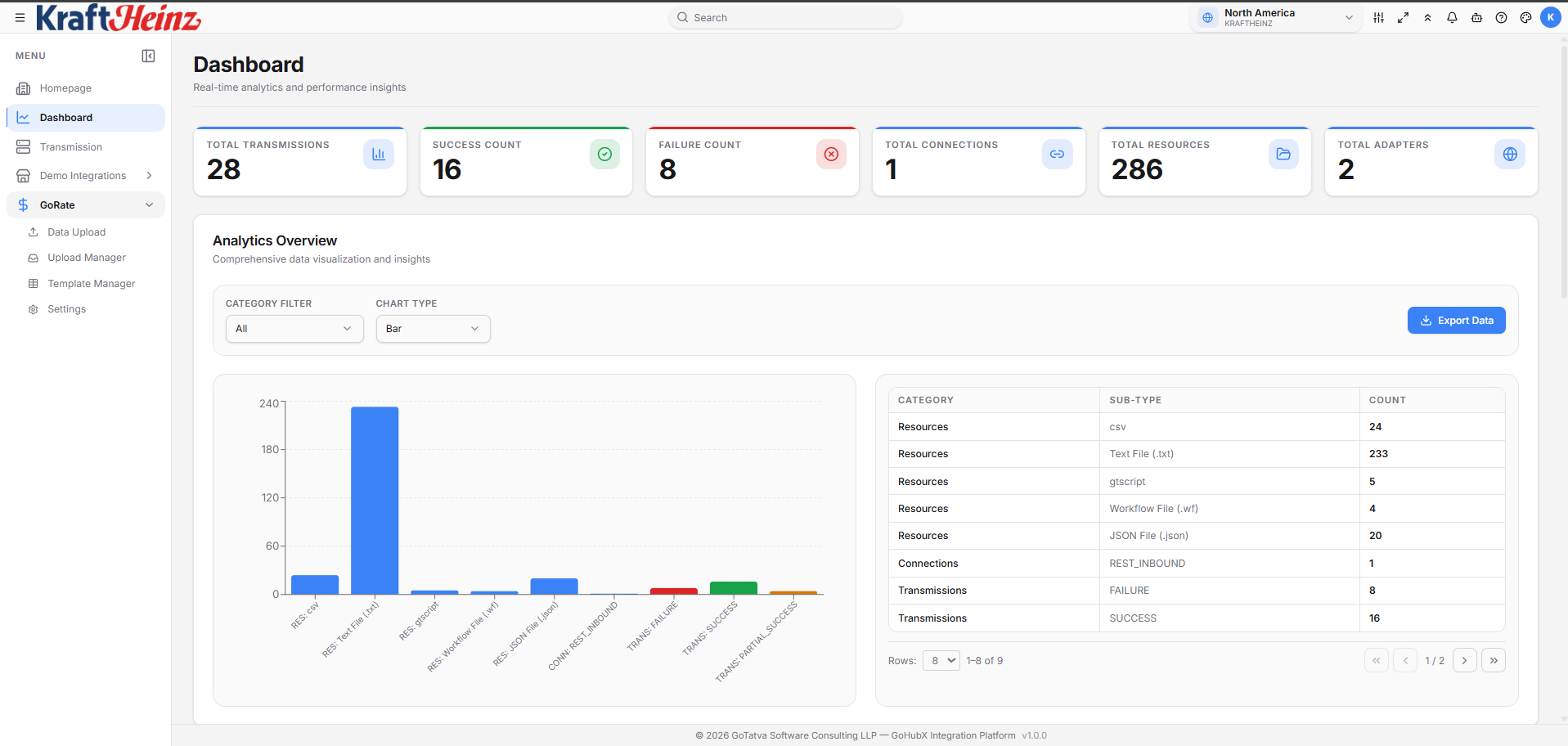
After sign-in - sidebar navigation (left), GoRate menu expanded, and the project/customer selector (top right).
Before your first upload
Setup is handled by your administrator, but four things must be in place. Check with them if any is missing.
1. A template exists for your file, and you are assigned to it. Templates define the expected columns, validation rules, approvers, emails and how the load behaves. You pick one when you upload - one template per rate-file shape. See Template Manager.
2. The OTM master-data snapshot is fresh. Several pre-validation checks compare your file against a snapshot maintained via OTM Sync. If it is stale or missing, valid rows may be flagged - ask your admin to re-run OTM Sync.
3. The project has an OTM adapter and a threshold. Both are set on the GoRate Setting page. Without them an upload cannot be validated against OTM or loaded into it.
4. You know the project's upload window. If the project loads in Business Hours mode, approved uploads are held during the day and released at the project's execution time. See GoRate Setting.
Finding your way around
The sidebar on the left is your main navigation. GoRate's pages live under the GoRate section; most people keep Upload Manager open all day.
| Menu item | What it's for | Who uses it |
|---|---|---|
| Dashboard | Overview of uploads and pipeline health | Everyone |
| Data Upload | Drop in a workbook; the live validator catches errors | Uploaders |
| Upload Manager | One row per upload, with status, tracker and actions | Everyone |
| Template Manager | Templates: columns, rules, access, approvers and emails | Admins |
| Rate Viewer | Browse the rates held for an upload | Everyone |
| OTM Sync / OTM Data | Refresh and browse the OTM master-data snapshot | Admins |
| Reports | Per-table OTM load success and failure across uploads | Everyone |
| Audit Trail | Trace a record in OTM - rate, capacity limit, commitment or allocation - back to its upload, approvals and source file | Everyone |
| Settings | The GoRate Setting page: OTM adapter, threshold, business hours | Admins |
Transmission, where you follow the load into OTM step by step, sits in the platform's main menu rather than under GoRate. See Transmission.