Transmission Manager
Where you follow the load into OTM step by step, after approval. It sits in the platform's main menu, not under GoRate.
Each upload appears as a transmission. Expand it to see the individual steps of the run.
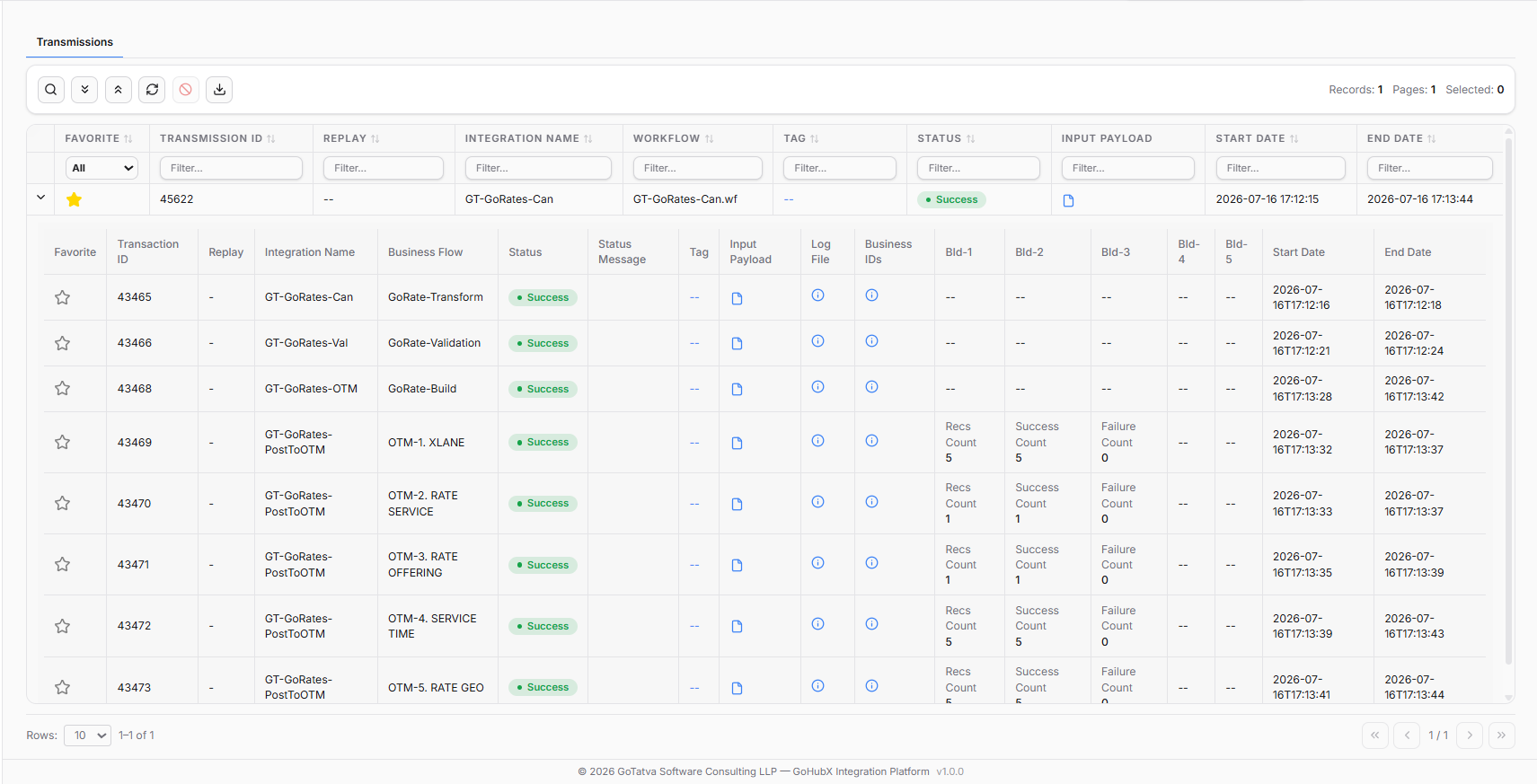
One transmission per run, expanded to show each step with status, logs, payloads, Business IDs and record counts.
What you can inspect per step
| Item | What it gives you |
|---|---|
| Status & status message | Success or failure per step, at a glance |
| Log file | The detailed execution log for that step |
| Input / step / output payloads | The exact data going in and out of each stage |
| Customised Business IDs | Your own identifiers attached to the run |
| Record counts | Processed, succeeded and failed per OTM step |
| Start & end times | Per step, so you can see where time was spent |
The grid supports per-column filters and sorting, favourites, replay and export - useful when tracking many uploads across a day.
The steps you will see
Records go to OTM table by table, in dependency order:
XLane -> Rate Service -> Rate Offering -> Service Time -> Rate Geo -> Rate Geo Expiry
For large files, Rate Geo is split into batches of 2,000 records that run one after another. Seeing many Rate Geo steps on a big file is normal - see Publishing to OTM.
When a batch was not accepted
If the integration refuses a batch three times in a row, the run carries on with the rest of the file and the batch is recorded as failed. Its log entry here carries a warning naming the batch - Batch 7 of RATE_GEO (2000 records) ... - with the batch's data attached, so support can load it by hand. The same batch is named in the upload's Status Tracker and in the completion email.
When to come here
- A step failed and you need the error detail and payload.
- A batch was not accepted and you need its data to load it manually.
- You want to confirm how many records each OTM table actually received.
- An upload is taking a long time and you want to see which step it is on.
For the everyday view of an upload, use the Status Tracker in Upload Manager instead.