View Source
Opened from a row in Upload Manager. It shows the file exactly as it was uploaded, marks the rows validation flagged, and is where you run a file again or confirm you have reviewed it.
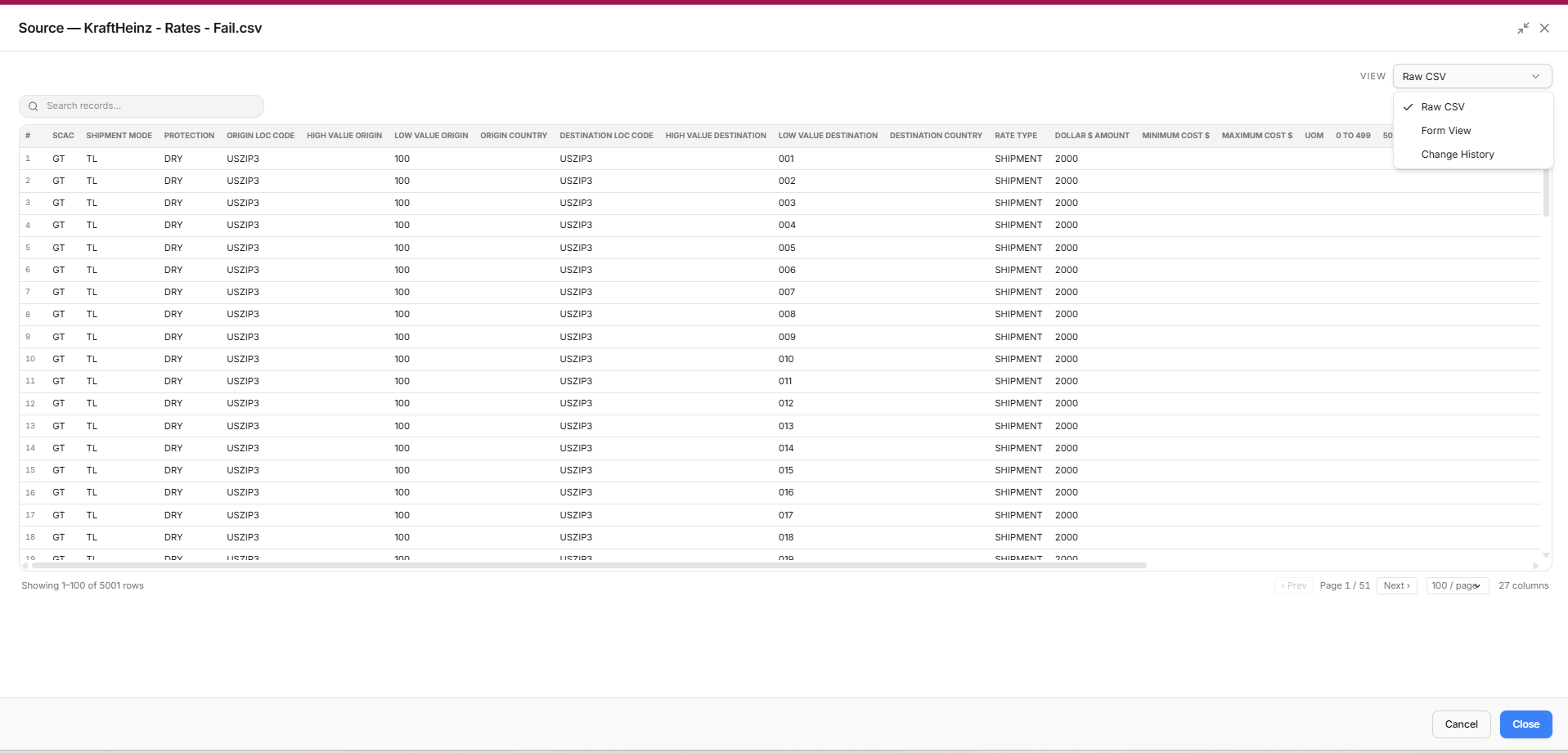
The uploaded file in a searchable grid. The VIEW dropdown (top right) switches between views.
The VIEW dropdown
| View | What it shows |
|---|---|
| The file's sheet(s) | Your file, exactly as uploaded - one entry per sheet in a workbook |
| Change History | Every edit made in the Data Upload grid before the file was pushed. Only offered when something was edited |
Reading the grid
Once validation has run, filter chips above the grid count the rows in each group:
| Chip | Rows |
|---|---|
| All | Every row in the file |
| Errors | Rows validation flagged as errors |
| Warnings | Rows with warnings - shown only when there are some |
| Skipped | Rows set aside by validation against OTM - they will not reach OTM. Shown only when there are some |
| Non-errors | Everything else |
Hover a flagged row to see why it was flagged. Findings that name records by their OTM ID rather than a row are listed under View Errors on the upload row instead.
- Search records narrows the grid.
- Export downloads the rows currently shown - the current chip and search, every page of it - as CSV.
- Choose how many rows show per page at the bottom.
Change History
An audit trail of everything changed in the grid before the file was pushed.
Each entry records the time, action (Cell edit or Marked OK), sheet, row,
column and the exact change - e.g. (empty) -> 100 or GT1 -> GT. Duplicate
dismissals appear as excluded from duplicate detection.
For approvers, this answers "what did the uploader change by hand?" at a glance.
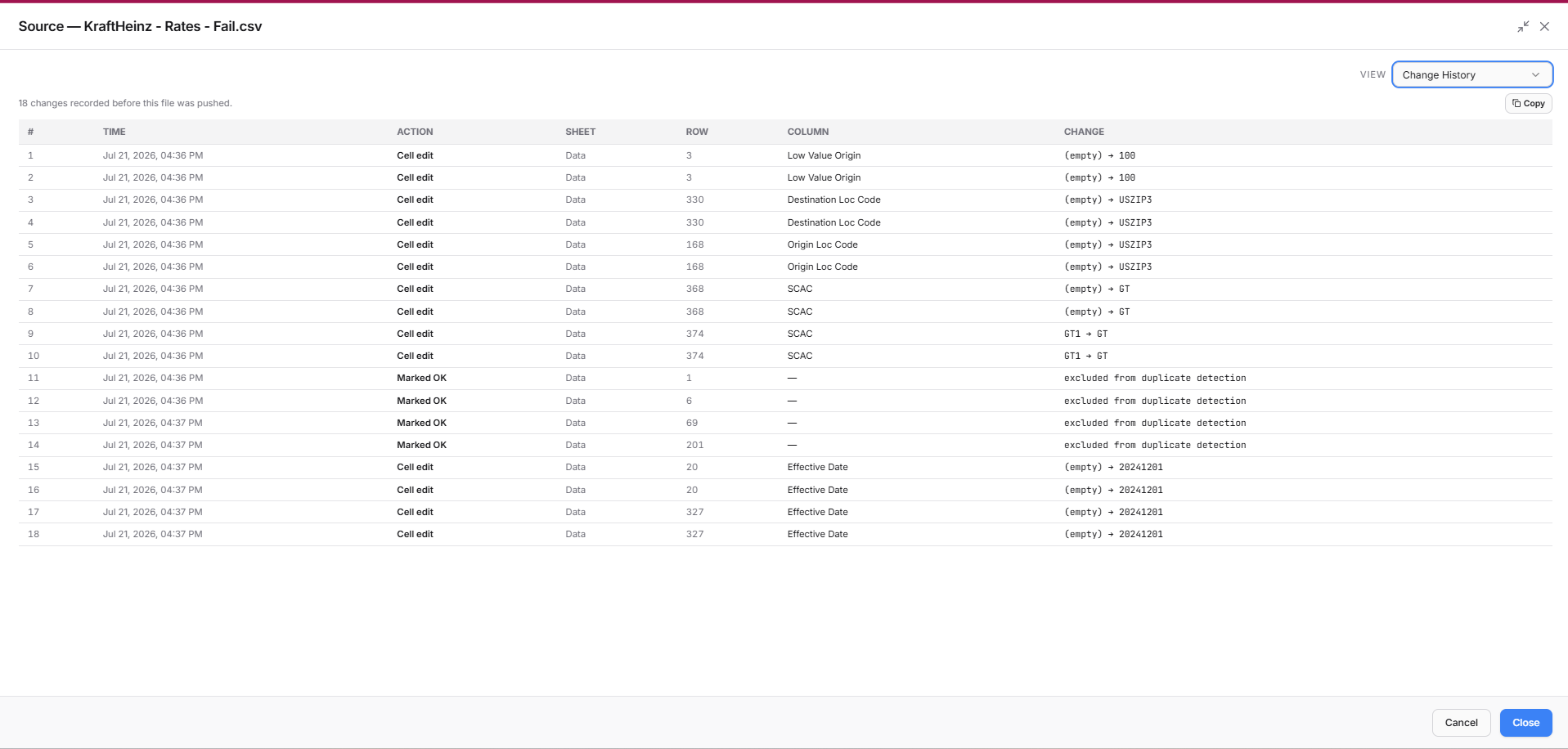
A numbered log of every cell edit and Mark OK made before the file was pushed.
Actions in View Source
| Action | When it is offered | What it does |
|---|---|---|
| Revalidate | Validation Rejected; Validated with no approvals yet; or Validating for over 30 minutes | Validates the same file again, unchanged - use it once the OTM side has been fixed |
| Reprocess | Same as Revalidate | Opens the file in Data Upload as a new upload - edit the rows, then validate and push |
| I've reviewed the data in this file | Validated, for approvers | Ticking it unlocks Approve on the row. Untick to take it back. See Approvals |
Once someone approves the file, Revalidate and Reprocess are no longer offered.
Looking at a rate in detail
View Source shows the file as rows. To see a single rate as the system extracted it - header, rate info, costs, accessorials, special services and remarks - open Rate Viewer from the GoRate menu, pick the file, and double-click the rate.