Data Upload
Where you drop in a workbook, fix what the validator flags, and submit.
Uploading a workbook
- In the sidebar, expand GoRate and open Data Upload.
- Drag and drop your file onto the drop zone, or click Choose File.
Supported:
.xlsx,.xls,.xlsm,.csv. Columns are detected automatically.
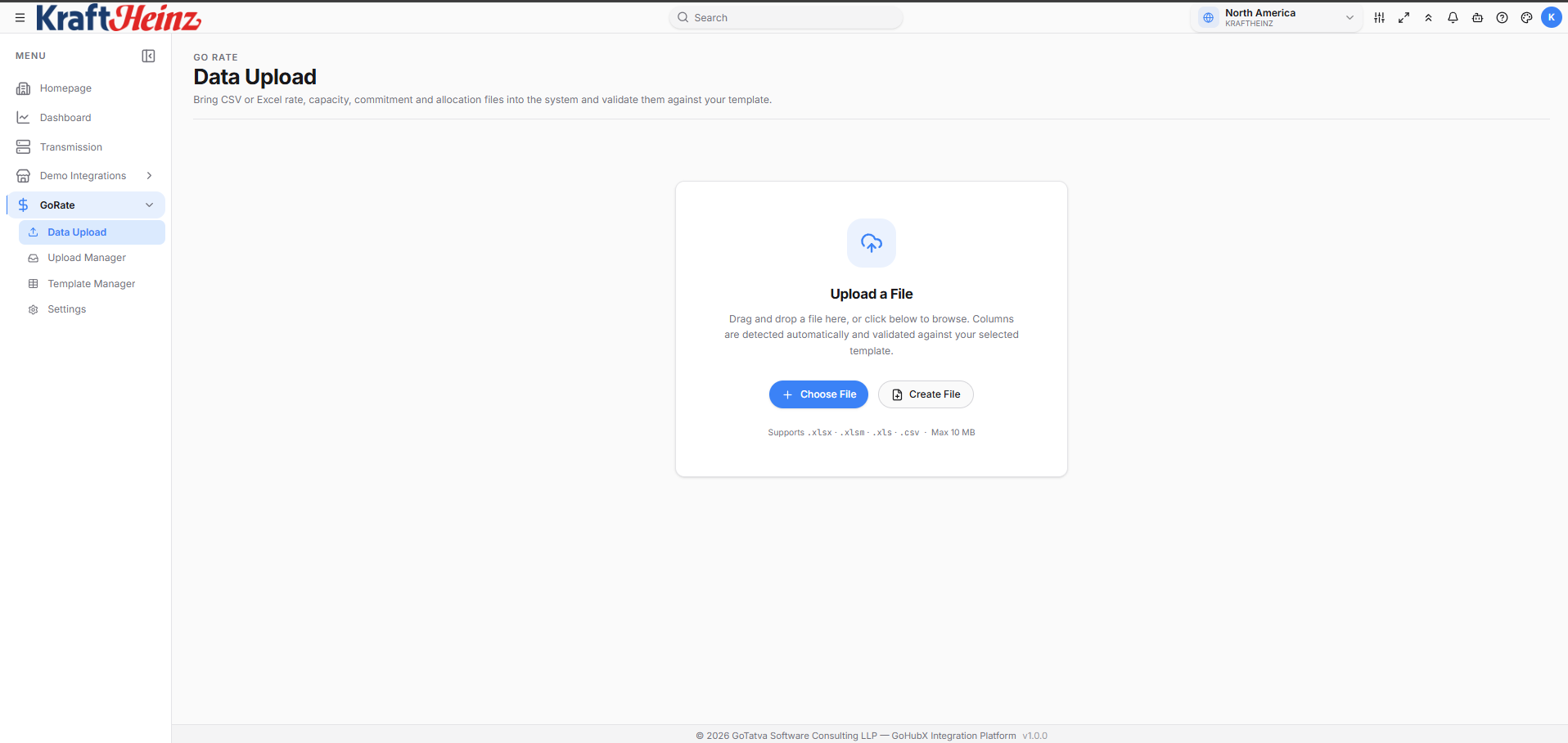
Data Upload - drag & drop a file or click Choose File.
- The grid opens with a tab per sheet and a summary of rows, sheets and columns. In the Template panel on the right, choose the template that matches your file - validation runs against it.
- Fix any cells highlighted in red; review anything in amber.
- Click Push All Records to submit, then track it in Upload Manager.
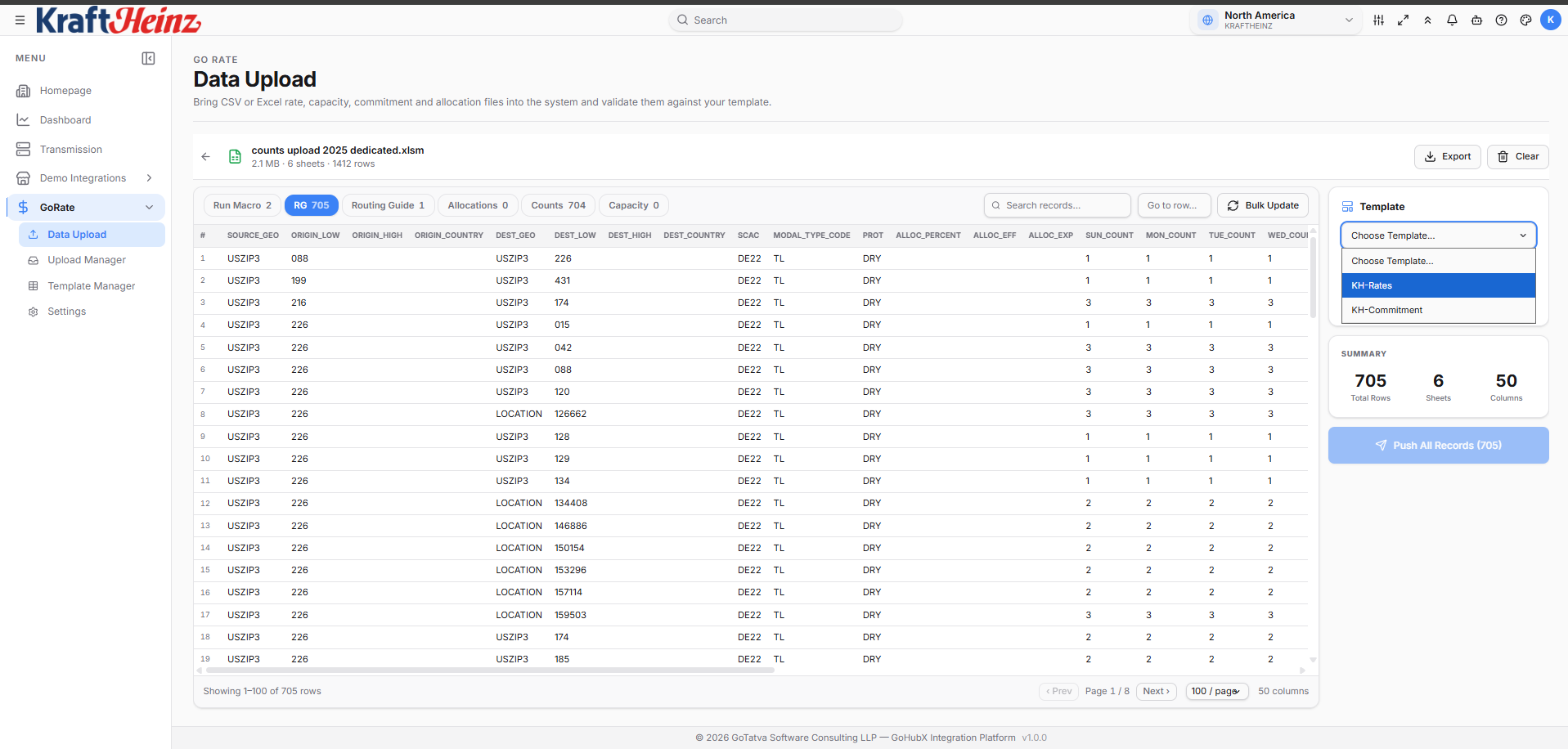
File loaded - pick your template on the right, review the grid, then Push All Records.
Fixing the grid
Validation runs on your machine, so errors surface while you can still fix them. Full rules are in Validation; this is what you do on this screen.
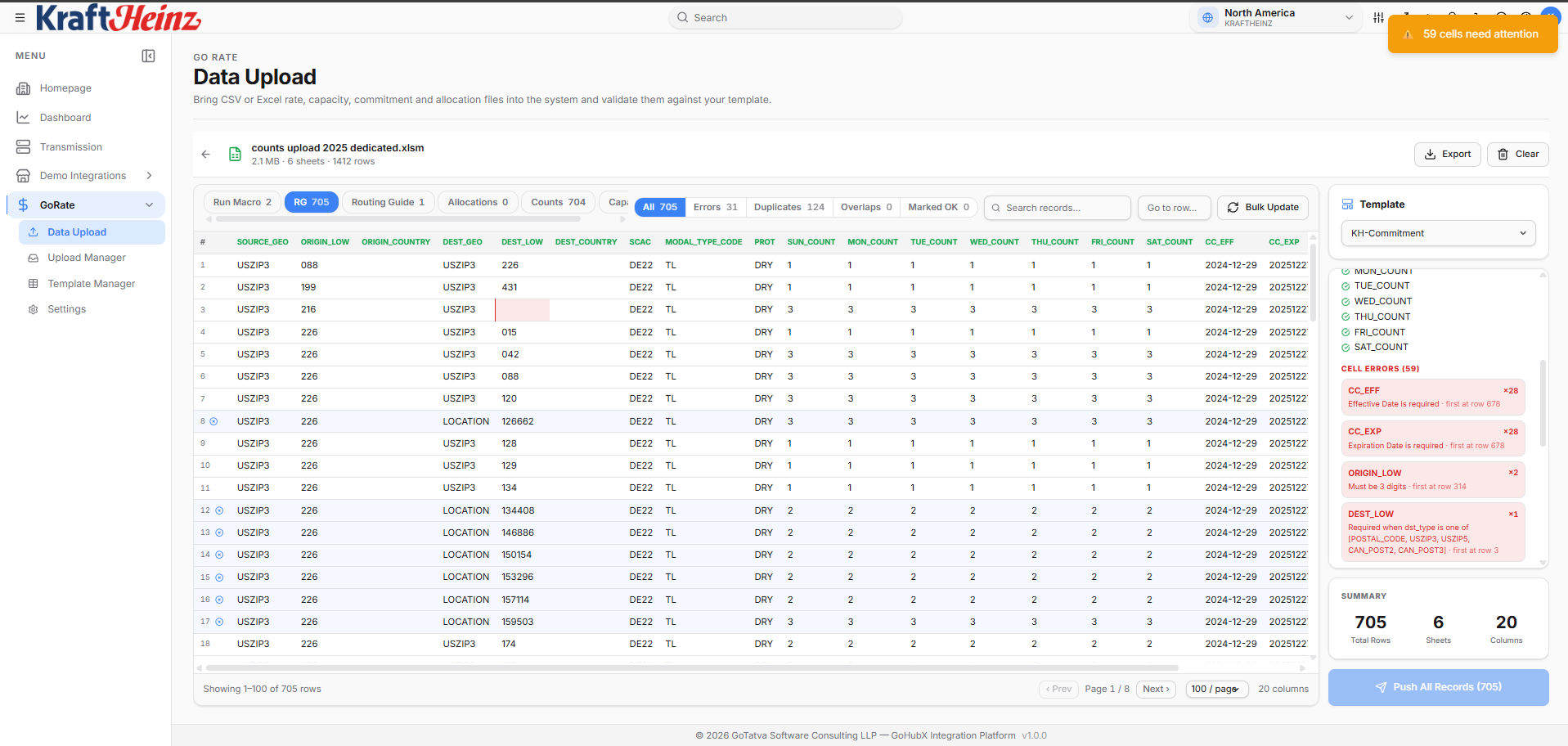
Filter chips above the grid, and the Template panel listing matched, missing and extra fields plus every cell error.
Two places show what needs attention:
- Filter chips above the grid - All - Errors - Duplicates - Marked OK, each with a live count, to jump straight to problem rows.
- The Template panel on the right - the header check (matched, Missing, Extra) plus a Cell Errors list showing each message, how often it occurs, and the first row it appears on.
What the cell colours mean
| Colour | Meaning |
|---|---|
| Red | Validation error - blocks upload until fixed |
| Amber | Auto-fixed - review and confirm |
| Fuchsia | Row flagged as a duplicate |
| Slate | Row dismissed by you ("Marked OK") |
| Green (header) | Column matched the template |
Hover any flagged cell for a tooltip explaining the issue or the fix.
Editing
- Inline editing - double-click any cell. The validator re-runs immediately.
- Right-click a row - Insert row above / below, Delete row.
- Find & Replace (
Ctrl+H) - pick a column or "Any column", optional case-sensitivity. Only replaces within the current filter scope, so you can scope a fix to "Errors only" before running it. - Mark OK - right-click a duplicate to dismiss a false positive. Applies for the current session.
Other controls
- Bulk Update - apply a change across many records at once.
- Search records - free-text search across the loaded grid.
- Export - download the current (corrected) grid.
- Clear - discard the loaded file and start over.
- Page size - 50 / 100 / 250 / 500 / 1000 rows, so a 15,000-row workbook stays responsive.
Coming here from Reprocess
Reprocess in View Source opens an earlier upload here as a new upload, with its rows already loaded. Edit them, pick the template, and push as usual - the original upload is left as it was.
What actually gets uploaded
The corrected grid - auto-fix changes and your edits, not the raw original.
View Source always shows the file as it was uploaded, and Change History lists every edit you made here.
A second stage runs against live OTM after you submit and can set records aside. See Validation.