Template Manager
Templates define the shape of a rate file and everything that happens to it: the expected columns, the validation rules, who can use it, who approves it, who is emailed, and how each OTM table is loaded. You pick one every time you upload.
Admin screen. Most uploaders only come here to export a template.
Download a template before you start
Prepare your file from the template rather than from a previous file - column names and order matter.
- Go to Template Manager.
- Open the template you want.
- Click CSV or Excel in the toolbar.
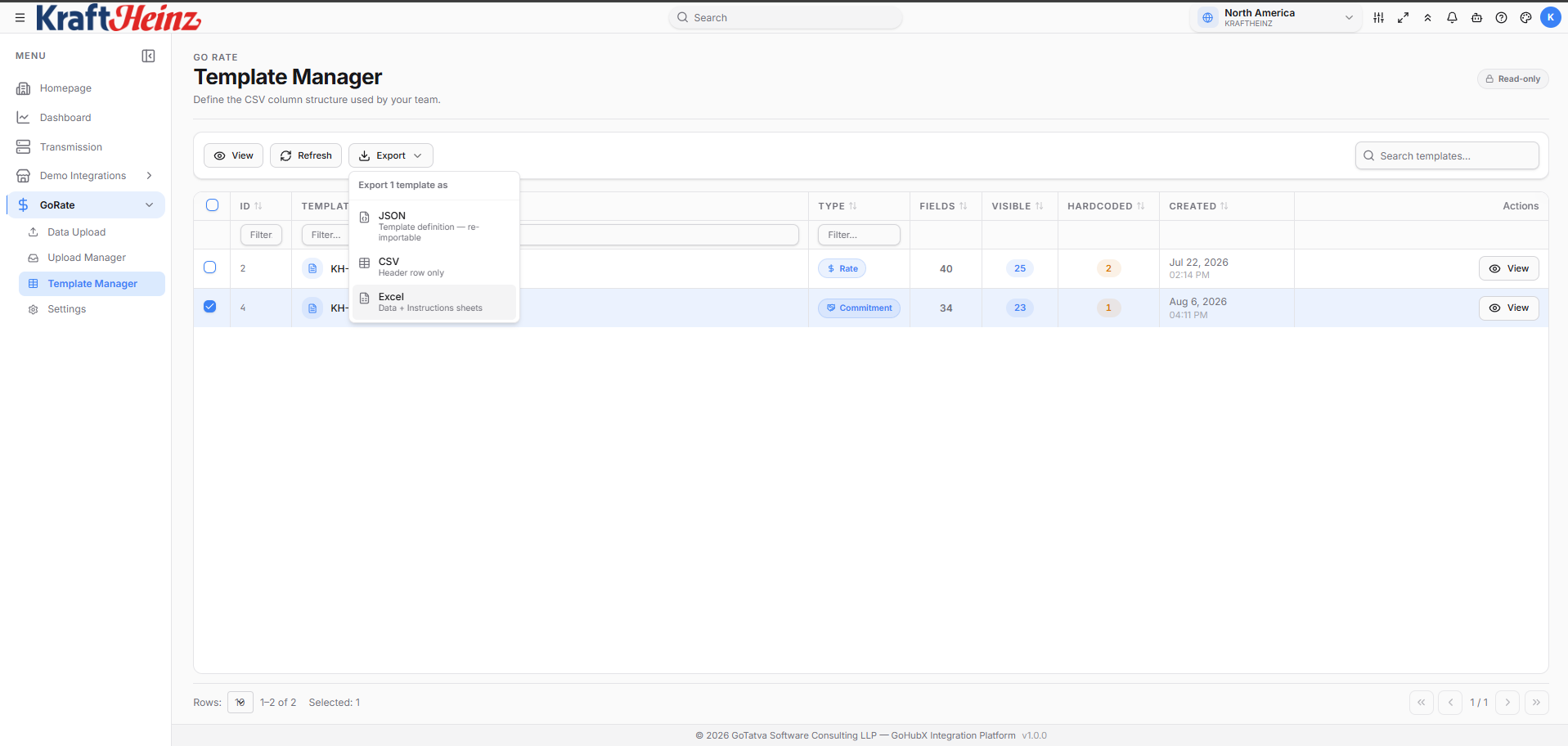
Open your template and export it as CSV or Excel.
Keep the required columns and format unchanged.
The toolbar
| Button | What it opens |
|---|---|
| Preview | The file as an uploader will see it |
| CSV / Excel | Download the template |
| Settings | How the template behaves: delimiter and the OTM tables to load |
| Access | Who uses it, who signs off and who is emailed |
| Validations | Which business validations run on upload |
| Save | Saves the template - nothing in the panels is stored until you do |
Editing a panel safely
Settings and Access open as side panels made of sections. Every section is read-only until you click its Edit button, so a stray click cannot change something you did not mean to touch.
- Click Edit on the section you want. Only one section can be open at a time.
- Make your changes, then click Apply - or Cancel to put the section back exactly as it was.
- Closing the panel with a section still open discards that edit.
- Reset to defaults in the footer asks before it does anything, and resets only the panel you are in - resetting Settings never touches Access, and the other way round.
Then click Save in the toolbar.
Settings panel
How this template behaves.
| Section | What it controls |
|---|---|
| Upload | The default delimiter used to read uploaded CSV files - comma, semicolon, tab or pipe |
| Tables to Upload | The OTM tables loaded for this template type, in dependency order, and the action for each |
The action per table:
| Action | Meaning |
|---|---|
| Create if not found | Insert only (OTM II) - fails if the record already exists |
| Create / update | Upsert (OTM IU) - creates if new, updates if found |
| Expire & process | Rate Geo only (OTM EP) - expires the matching rates already in OTM, then inserts the new one. See Publishing |
| Fail if not found | Not uploaded - the record must already exist in OTM |
Set to Expire & process, loading modifies rates already in OTM rather than only adding to them.
Access panel
Who uses this template, who signs off, who is told. Kept apart from Settings so access and approvals are never changed by accident while editing table setup.
| Section | What it controls |
|---|---|
| Assignees | Project members who can see this template and upload against it |
| Approvals | The approvers - each mandatory or optional - and the policy: All mandatory or Any one. No approvers means files are auto-approved. See Approvals |
| Notification Emails | Extra addresses copied on this template's emails, and who gets which email |
Who gets which email
A grid with one row per email and a column each for Approvers, Uploader and This list (the extra addresses above). Tick or untick a box to change who receives that email.
- By default every box matches the routing GoRate has always used, so nothing changes until you change it. Reset to default puts it back.
- Approvers always get Approval pending - that box is locked, because without it nobody is asked to approve.
- Auto-approved has no approvers column - it is only sent when the template has no approvers.
- A row that would reach nobody shows Nobody will be told.
- Whoever needs to act is on the To line; everyone else is copied.
The full list of emails is in Emails.
Validations panel
Business Validations lists each pre-validation rule with a switch, and shows how many are enabled. Turning one off stops that check running in Data Upload for this template:
| Rule | What it checks |
|---|---|
| Length checks | Minimum, maximum or exact character count |
| Conditional required | A field is required when another has a given value |
| Auto-fix corrections | Silent normalisation, e.g. ZIP zero-padding; fixed cells turn amber |
| Master-data lookups | Carriers, locations, regions, lanes and contracts exist in the OTM snapshot |
| Real US ZIP codes | USZIP3 / USZIP5 values are real US ZIP codes |
| Unique Rate IDs | No Rate ID appears twice in the upload |
| Cross-row totals | Totals across related rows add up, e.g. allocations to 100% |
| Period-aligned validity | Effective / expiration dates line up with the time period type |
| Required value groups | At least one field in a group carries a value |
| Conditional formats | A value's shape, when a related field has a given value |
| Date ordering | Expiration falls after effective |
| Numeric bounds | Numbers stay inside their allowed range |
| Overlapping validity windows | Rows on the same lane and carrier with intersecting dates |
| Duplicate detection | Fuzzy and exact duplicates |
See Validation for how these show up on the grid.
What is not set on the template
The OTM adapter, the failure threshold and business hours are set once per project, on the GoRate Setting page.
One template per file shape
Templates are per rate-file shape - typically per geography or per carrier. If your file does not match any template's columns, that is a template question for your administrator, not something to fix by renaming columns in the workbook.