Checklist
A shared task list. Every checklist sits in one of three scopes, and the scope decides who else can see it.
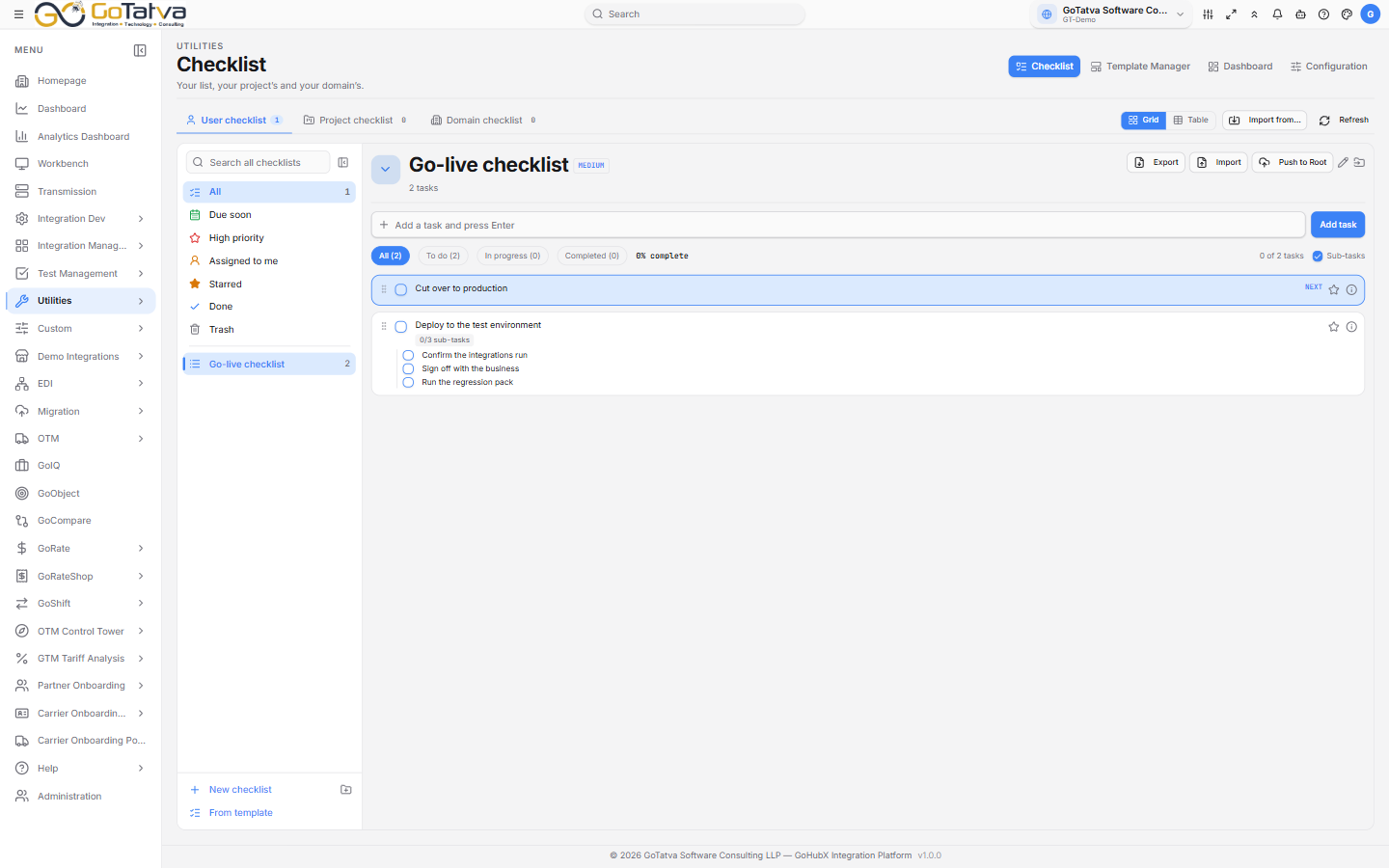
Scopes across the top, filters down the left, and the open checklist with its tasks and sub-tasks.
A template decides which columns a checklist's tasks carry; the scope decides who sees it.
Before you start
Pick the right project in the top bar. The project scope reads the selected project, and a checklist created there is not visible from another one.
The four sections
The buttons in the page header move between the parts of the module:
| Section | What it is for |
|---|---|
| Checklist | Your list, your project's and your domain's |
| Template Manager | Reusable tasks and the columns they carry |
| Dashboard | Where every list stands, and what is late or due |
| Configuration | Reserved for per-user preferences; nothing is live yet |
The navigation panel offers Checklist and Checklist Templates; the Dashboard and Configuration sections are reached from inside the module.
Scopes
Four tabs across the top, each with a live count:
- User checklist — yours alone.
- Project checklist — shared with the project.
- Domain checklist — shared across the domain.
- Done — everything completed, reached from the side rail.
If you are not a member of the selected project, its tab is dimmed and its checklists stay hidden. Where you have been given read-only access, the list carries a READ ONLY banner and the controls are disabled.
The side rail
The rail down the left holds the checklists themselves plus:
| Item | Notes |
|---|---|
| All / Due soon / High priority / Assigned to me | Filters over the current list |
| Starred | The ones you marked |
| Trash | Deleted items, with a count |
| Search | Matches checklists and the tasks inside them |
| Tags and folders | Anything unfiled groups under Unfiled |
Show side bar brings the rail back when it is collapsed.
Working with tasks
Type into Add a task and press Enter to add one. The buttons on each checklist do the rest:
| Button | What it does |
|---|---|
| Edit this checklist | Title and notes |
| Move or copy to a folder | |
| Manage access | Who else can open it — an administrator action |
| Add tasks from an Excel or CSV file | The sheet must match the template's columns |
| Show each task's sub-tasks underneath it |
The Grid / Table toggle switches the layout and is remembered in the page address, so a link you share opens the same way. Import from… copies a checklist in from another project. Refresh reloads every list.
Right-clicking a checklist or folder offers Rename folder, Lock / Unlock, Pin / Unpin, Remove from folder, Copy, Copy to folder…, Move to folder…, Duplicate checklist, Delete folder and Delete checklist. Several rows can be selected at once, and the menu counts them — Delete 3 checklists, for example. A locked checklist shows who locked it.
Notify by sets how the Notify button on a task reaches someone: In-app notification, Email or Microsoft Teams.
Columns on a task
Every task always carries a tick, a number, the task text, Assignee and Assigned by. The template it came from can add any of:
Area · Owning team · Owner name · Dependency · Start date · End date · ETA · Priority · Category · Status · Remark · Tags
| Field | Values |
|---|---|
| Priority | Urgent, High, Medium (the default), Low |
| Category | ENH, BUG, GAP |
| Status | Not started, In progress, Blocked, Done |
Table view adds four more columns — Created by, Created at, Updated by, Updated at. They are filled in on every write and cannot be typed.
Dashboard
The Dashboard section rolls up every list you can see:
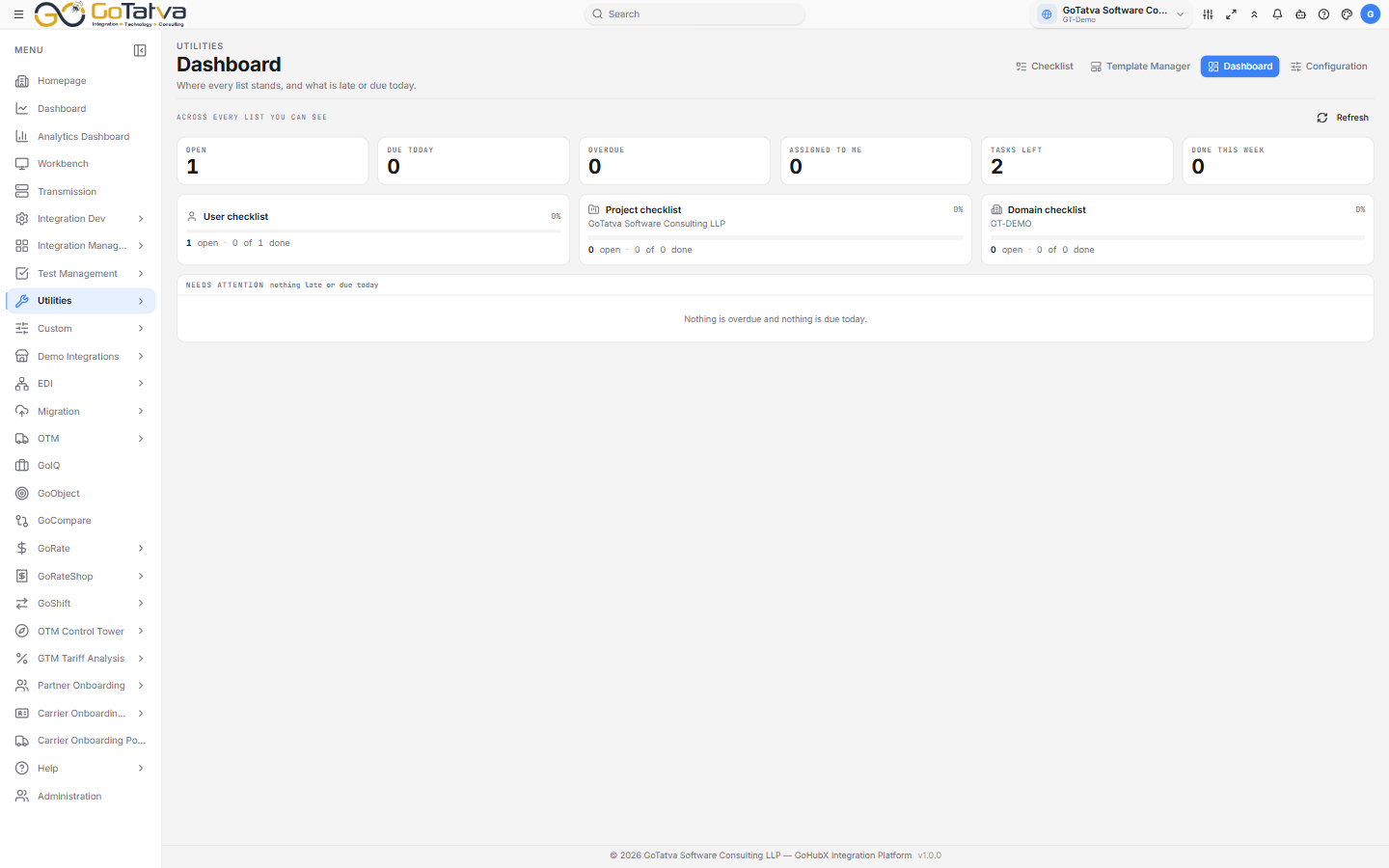
Six tiles, a card per scope, and what needs attention.
- Six tiles — Open, Due today, Overdue, Assigned to me, Tasks left, Done this week. Overdue turns red when it is above zero.
- Three cards, one per scope, each with a done-of-total line that clicks through to that tab.
- Needs attention — late items first, then what is due today. It reads "Nothing is overdue and nothing is due today." when you are clear.
When something will not load
If a refresh fails but a previous copy is still in the browser, an amber strip appears above the list — "Showing the last loaded checklists — refreshing failed." — with a Retry. If there is nothing cached, the page offers Try again instead.
Access
Access is set per checklist, not per person's role: Manage access on a checklist decides who can open it and whether they can change it. Sharing a checklist beyond yourself is an administrator action.
Templates are covered in Checklist Templates.