SFTP Tool
An SFTP client inside the platform. Open a connection, browse the remote server, and move files either way.
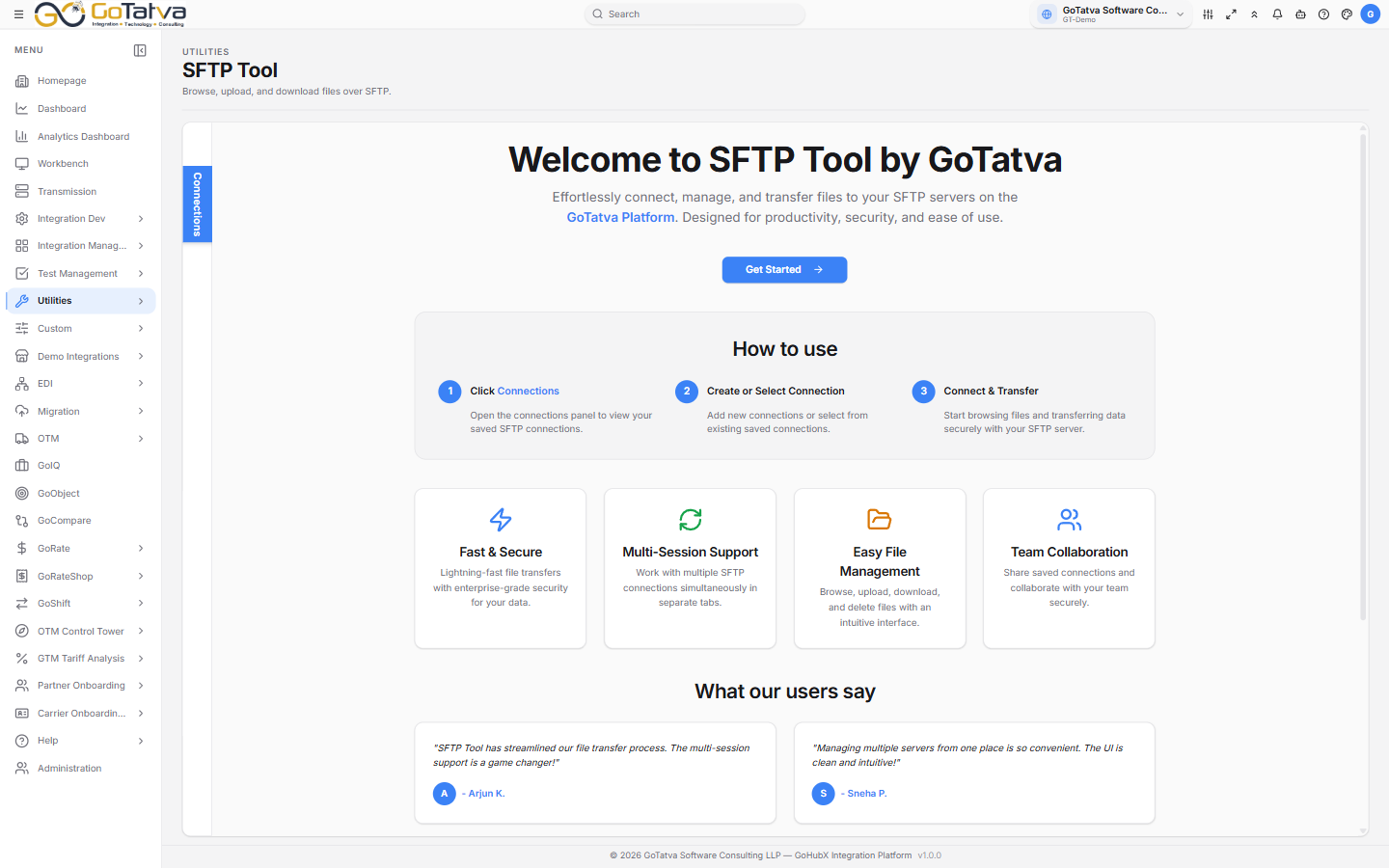
Connections on the left, the remote file list in the session.
Connecting
The Connections tab down the left edge opens a panel with:
- Saved Connections - the ones already configured for the project.
- Ad-hoc Connections - ones you created for this session.
- Create Connection - a new one.
Create New Connection takes a Connection Name, Host, Port, Username and Password, then Create & Connect. Host, username and password are required.
Each connection opens as its own session tab, so several servers can be open at once. A connected session shows a CONNECTED badge with the connection name.
Working with files
The Explorer tree on the left walks the folders; the table lists what is in the current one:
| Column | Notes |
|---|---|
| Name | |
| Size | |
| Type | Folder, or the file extension |
| Created At | Filterable by date |
| Permissions | The remote file permissions |
| Action | Notes |
|---|---|
| Upload | Or drag files straight onto the table |
| Download | The selected files |
| New Folder | Creates it in the current folder |
| Delete | Asks first, and cannot be undone |
| Refresh | Re-reads the current folder |
The breadcrumb and the back arrow move you around.
Transfers
The Transfers panel at the bottom shows each upload and download with its percentage, then Completed or Failed. It is worth watching on a large file rather than assuming the transfer finished.
Deleting several files at once reports partial results - "N file(s) deleted, N failed" - so read the message rather than assuming all went.