Users
Who has Control Tower access on this project. The list here is also what the Exceptions screen offers when you assign work, so keeping it current matters beyond access control.
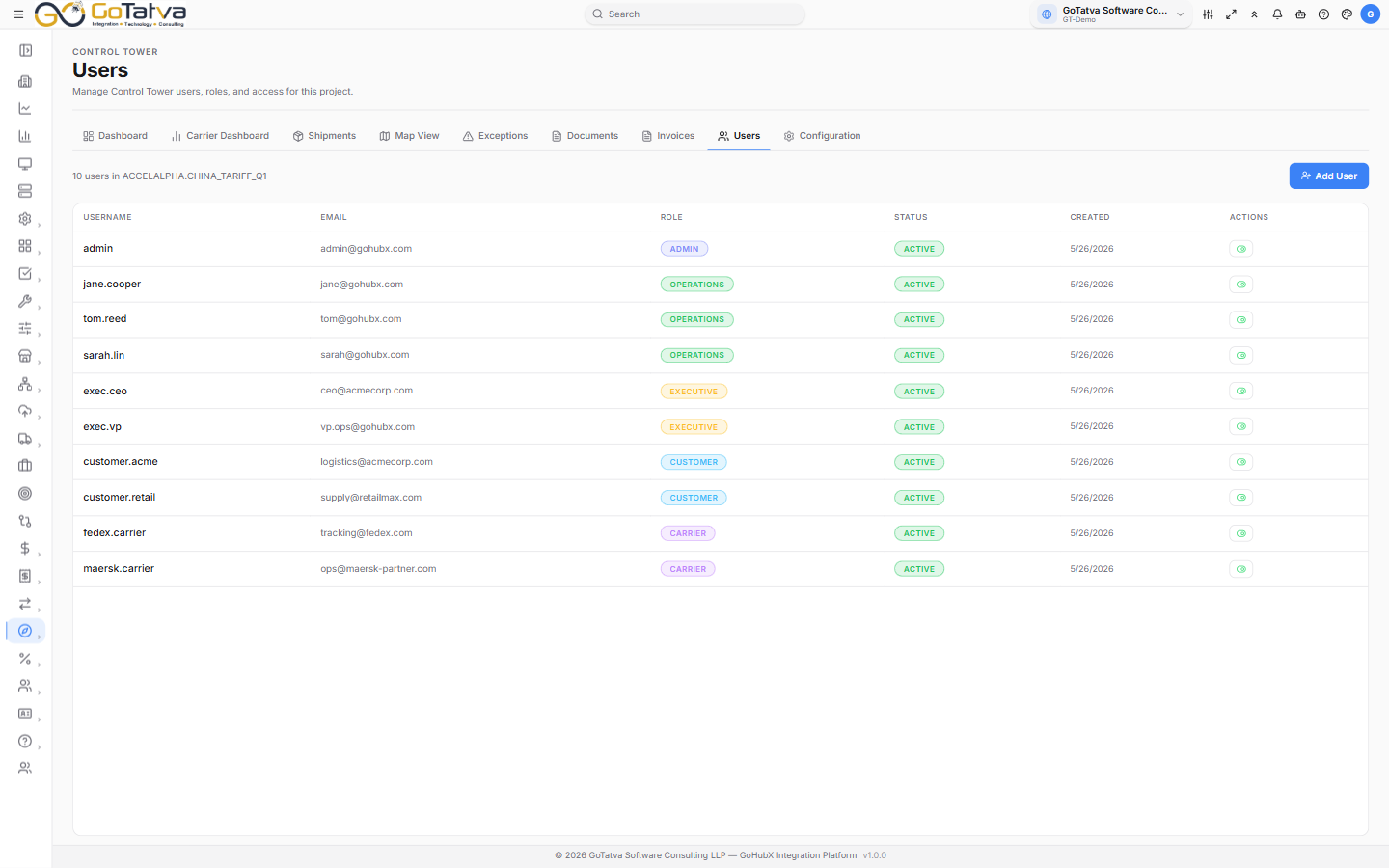
Control Tower users, their roles and whether they are active.
Adding someone
Click Add User and fill in:
| Field | Notes |
|---|---|
| Username | How they appear when work is assigned to them |
| Where their notifications go | |
| Role | See below. New users default to OPERATIONS |
Then Add. Both username and email are required.
Roles
| Role | Intended for |
|---|---|
| ADMIN | Setting up the connection, running syncs, managing users |
| OPERATIONS | Day-to-day shipment and exception work |
| EXECUTIVE | Reading the dashboards |
| CUSTOMER | Following their own shipments |
| CARRIER | Seeing the shipments they carry |
The table
Username, Email, Role, Status, Created, and an action to change the status.
Activating and deactivating
The button at the end of each row switches a user between Active and Inactive. Deactivating keeps the account and its history but takes the user out of the Assign to... list on Exceptions - which is what you want when someone changes team rather than leaves.
There is no delete. Anything already assigned to a deactivated user stays assigned, so the audit trail on past exceptions stays intact.