Integration Workbench
A screen you arrange yourself. Put the transaction list, the charts and the tools you use most into one grid, and keep it open while you work.
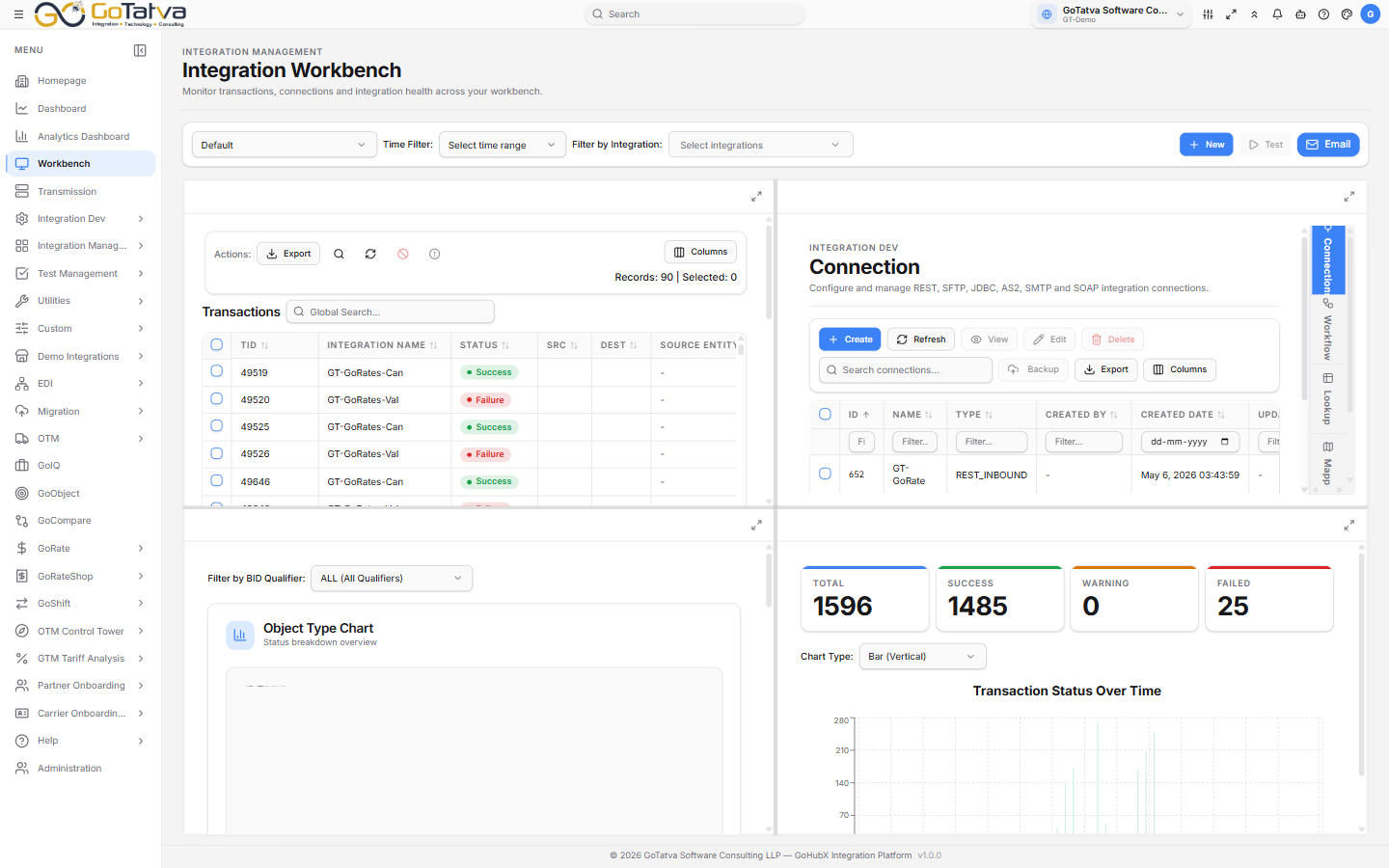
A workbench is a saved layout of panels.
Building a workbench
New asks for a Workbench Name, a Scope and a Layout, then which panel goes in each cell.
Scope decides who else sees it - User (just you), Project, or Domain.
Layout offers a 2x2 grid, a single panel, two panels split either way, a full panel over a split, and three-across or three-down arrangements.
The four panels are:
| Panel | Shows |
|---|---|
| Transactions | The transaction list, with replay and test |
| Modules | Connections, Workflow, Lookup, Mapper and Script embedded |
| Object Type Chart | A breakdown by business ID qualifier |
| Transactions Chart | Totals and status over time |
Drag the dividers to resize, and the expand button on any panel takes it fullscreen.
There is always a built-in Default workbench, which cannot be edited or deleted.
The Transactions panel
The same transaction list as Transmissions, inside your layout.
Columns cover TID, Integration Name, Status, source and destination, interface type and the five business ID columns. Start Time, End Time and Message are hidden until you switch them on under Columns.
Actions on selected rows:
| Action | What it does |
|---|---|
| Replay | Runs the transaction again as it was |
| Replay+ | Runs it again with a payload you edit first |
| Cancel | Cancels a transaction that has not finished |
| Report an Incident | Raises a ticket with the transaction attached |
A transaction that is Paused is waiting. Replaying it runs it now and cancels the held one - the screen warns you at the time.
Report an Incident takes a subject, a priority - Low, Medium, High or Critical - a description and the error details, and can attach the input payload and business IDs.
Exporting from this panel produces a different set of columns from the one on screen, including the input payload and workflow id.
Filtering
Time Filter covers the last hour, day, week or month, or a custom range. Filter by Integration narrows to one integration.
Testing an integration
Test runs an integration against a payload you paste, upload or take from Resources.
The test dialog lives inside that panel. In a layout without it, Test has nowhere to open - add the panel, or use Integrations.