OTM Control Tower
Control Tower gives you one place to see what is happening across your freight network: where every shipment is, which carriers are performing, what has gone wrong, and whether the invoices match what you planned to pay.
It reads from OTM. Nothing is keyed in here - a sync brings shipments, tracking events, documents and invoices across, and the screens below are different views of that same data.
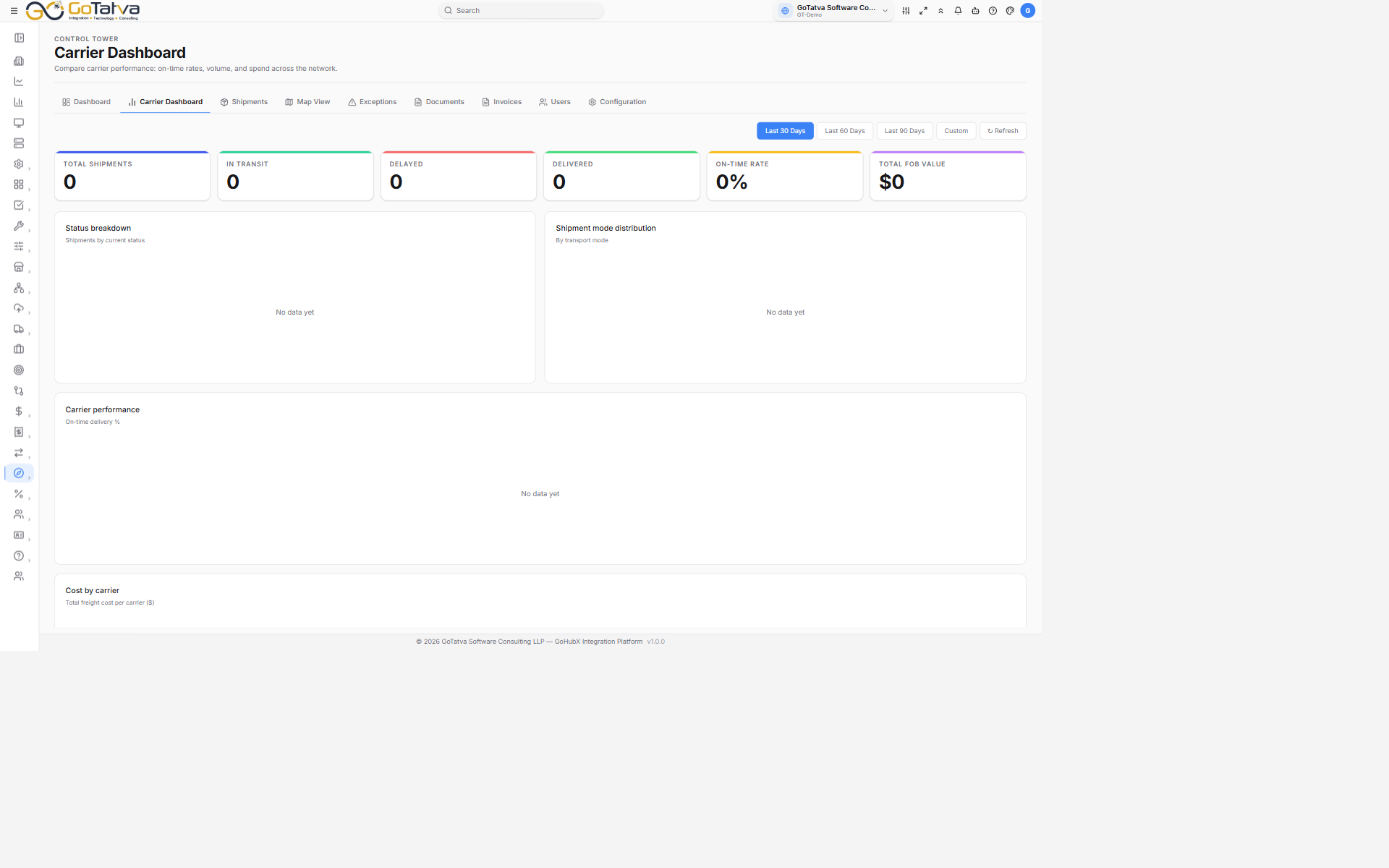
Control Tower opens on the Carrier Dashboard. The tab strip across the top is how you move between screens.
Configuration feeds every other screen. Nothing appears until a sync has run.
Who uses it
| Role | Typically does |
|---|---|
| Operations | Watches shipments day to day, works the exception list |
| Admin | Sets up the OTM connection, runs syncs, manages users |
| Executive | Reads the dashboards - carrier performance, on-time rate, spend |
| Customer | Follows their own shipments |
| Carrier | Sees the shipments they are carrying |
Your role is set on the Users screen and decides which of the screens below you can open.
The screens
| Screen | What it answers |
|---|---|
| Dashboard | How is the network doing right now? |
| Carrier Dashboard | Which carriers are performing, and what are they costing? |
| Shipments | Where is a particular shipment? |
| Map View | Where is everything, geographically? |
| Exceptions | What has gone wrong, and who is fixing it? |
| Documents | Where is the BOL or POD for this shipment? |
| Invoices | Are we being billed what we expected? |
| Users | Who has access, and who can work exceptions? |
| Configuration | Where does the data come from, and how often? |
You move between them using the tab strip across the top of every Control Tower screen.
Before it shows anything
Control Tower starts empty. Three things have to be in place:
- Access. Your administrator grants Control Tower in your role, screen by screen - a user with Shipments but not Invoices sees only the tabs they are allowed.
- A connection to OTM, set up once on Configuration. Until then the module runs on a built-in sample dataset so you can look around - useful for training, but it is not your freight.
- A sync. Configuration's Refresh Shipment Data is what fills every other screen. If a screen tells you to sync from Configuration, that is why.
How a day usually runs
- Open the Dashboard for the overall picture - what is moving, what is late.
- Work the Exceptions list: assign each one to someone, resolve it when it is dealt with.
- Use Shipments or Map View to answer "where is this order?"
- Reconcile Invoices against planned cost, and follow up anything over.