Configuration
Configuration is where Control Tower gets its data. Every other screen is empty until a sync has run from here, so this is the first screen to visit on a new project - and the one to come back to when something looks stale.
The screen has three sections.
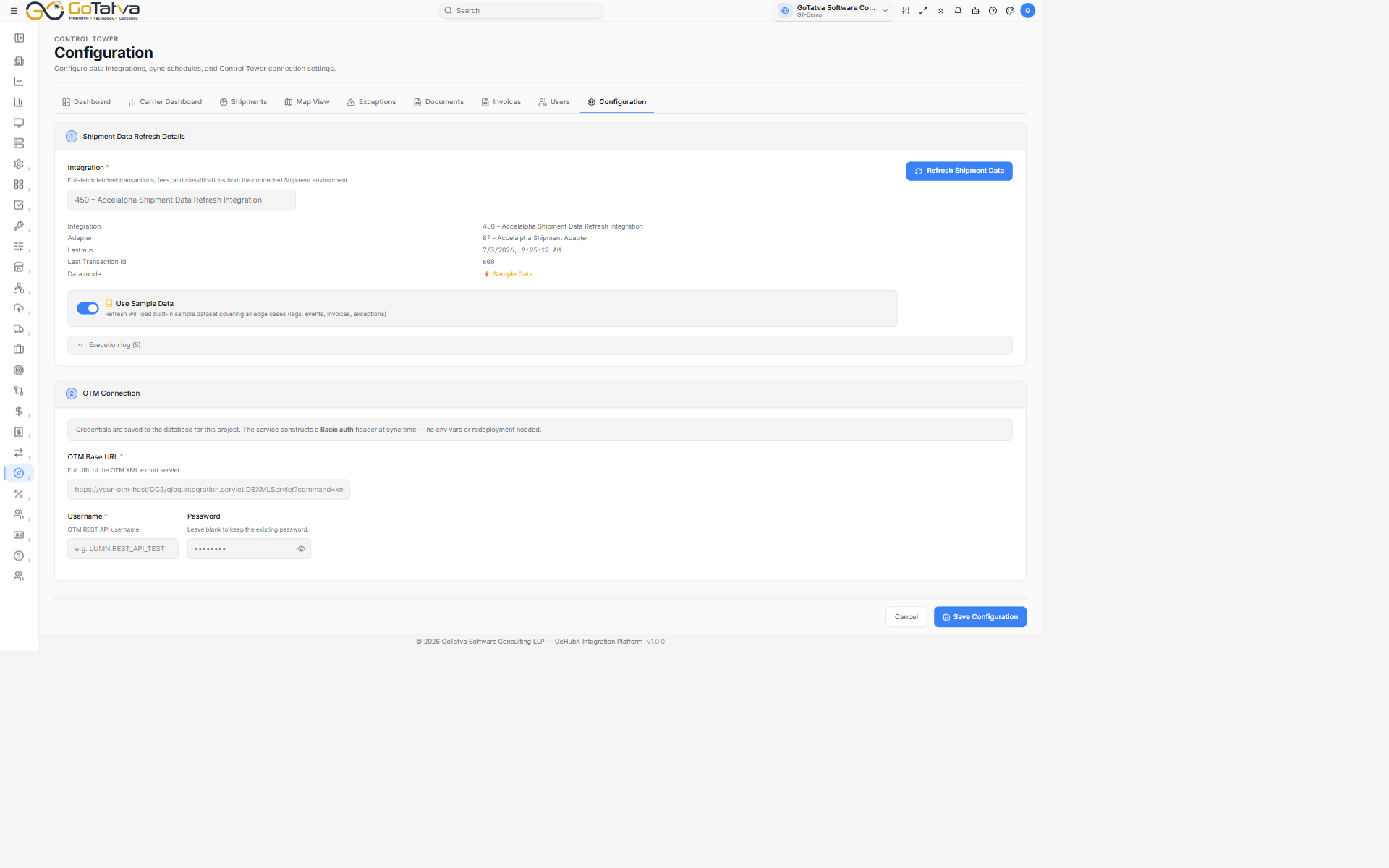
Configuration - the data refresh, the OTM connection and the alert settings.
1. Shipment Data Refresh Details
The top section shows which integration feeds Control Tower, when it last ran, and which mode it is running in.
Data mode is the setting that matters most:
| Mode | What you get |
|---|---|
| Sample Data | A built-in demo dataset. Every screen fills with realistic-looking shipments so you can learn the module - but none of it is your freight |
| Live OTM | Your own shipments, read from the OTM connection configured below |
Switch between them with the toggle - Use Sample Data / Use Live OTM Data. The change saves as soon as you flip it; there is no separate save for this one.
If the numbers look plausible but unfamiliar, check the data mode before anything else. A screen full of sample shipments looks exactly like a screen full of real ones.
Running a sync
Click Refresh Shipment Data. The button reads Syncing... while it runs, and a result appears beside it:
- Synced N records in <mode> mode - the run worked, and every screen is now up to date.
- An error message, or Sync failed - nothing was brought across; the previous data is still in place.
Below that, Execution log keeps the history: when each run started, whether it succeeded, which mode it used, how many records it fetched and how many it synced. Open it when someone asks why a shipment is missing - the answer is usually that the last sync predates it.
2. OTM Connection
The credentials Control Tower uses to read from OTM. They are held per project.
| Field | Notes |
|---|---|
| OTM Base URL | Required. The full URL of your OTM XML export servlet |
| Username | Required. Your OTM REST API user |
| Password | Leave blank to keep the password already saved |
In Live OTM mode the section tells you where you stand: OTM connection configured - ready for live sync, or OTM URL and username are required before live sync will work.
Click Save Configuration at the bottom. A short Configuration saved confirmation appears.
3. Alerts & Notifications
Who hears about problems without having to watch the screen.
- Alert email - the address that receives exception and delay notifications.
- Alert on shipment delay - when a shipment changes to Delayed.
- Alert on new exception - when an exception is opened.
- Alert on invoice variance - when an invoice's actual cost exceeds planned.
These save with Save Configuration.
Troubleshooting
| What you see | What to do |
|---|---|
| Every screen says "sync from Configuration" | No sync has run yet. Click Refresh Shipment Data |
| Sync succeeded but data looks wrong | Check the data mode - you may be on Sample Data |
| "OTM URL and username are required" | Fill both fields and save before syncing in live mode |
| Sync failed | Open Execution log for the error on that run, then check the URL, username and password |