Integrations
An integration is the thing that actually runs. It names a source and a target, attaches the workflows that do the work, and decides when it runs - on a schedule, or whenever something arrives at an endpoint.
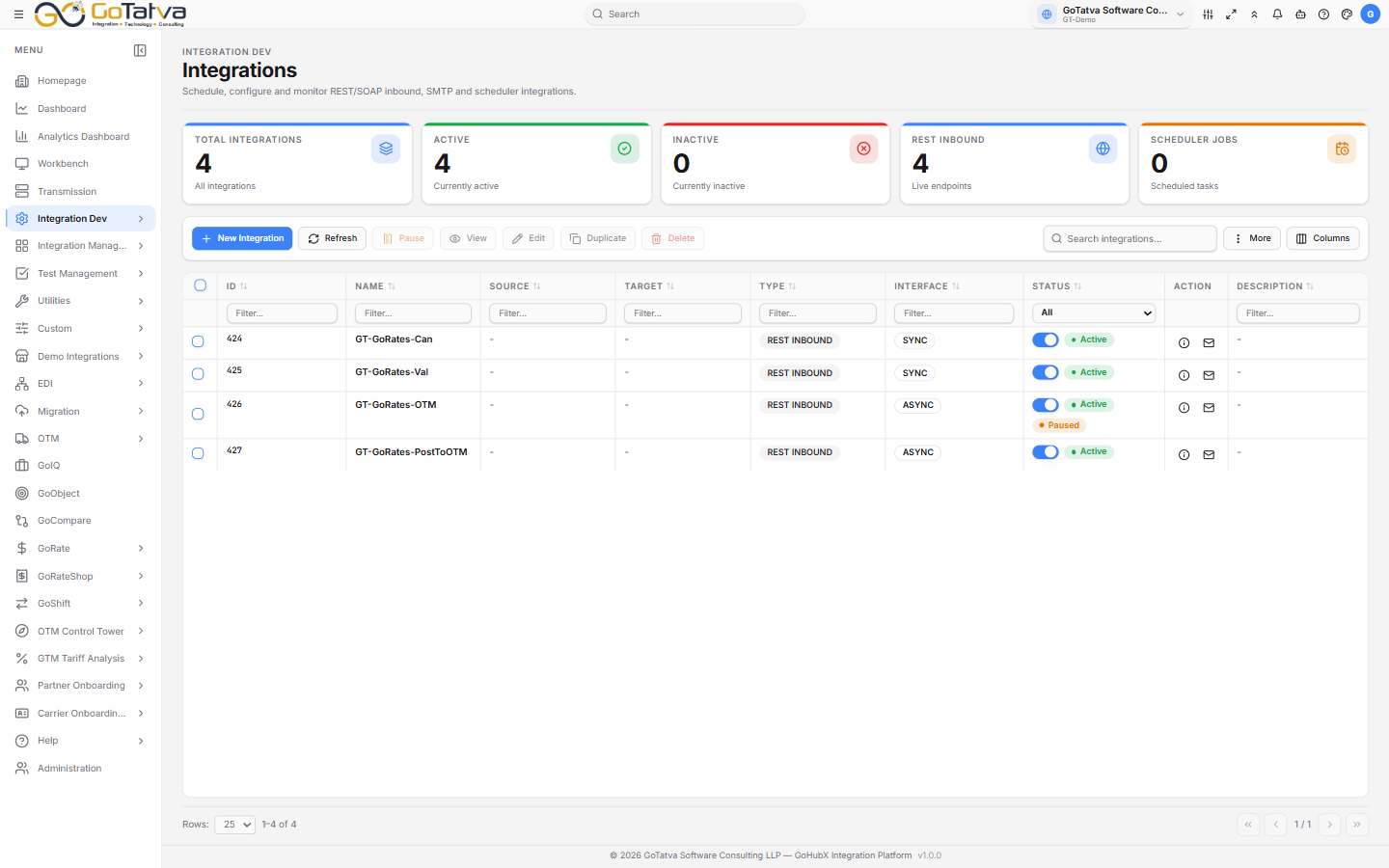
The integration list, with counts across the top and one row per integration.
The homepage shows both tiles. They open this page.
An integration is the last piece: it binds a connection to the workflows that do the work.
What the counts tell you
Total Integrations, Active, Inactive, REST Inbound (live endpoints) and Scheduler Jobs (scheduled tasks).
The list
Columns can be shown and hidden with Columns; Id and Name always stay. The default set is Id, Name, Source, Target, Description, Type, Interface, Status and Action.
Two icons on each row: View Workflow Details opens everything about the attached workflow - its screenshot, metadata, business IDs and global variables
- and Email Integration Details sends that summary to someone.
Creating one
New Integration opens a tab with five sections.
General
| Field | Notes |
|---|---|
| Integration Name | Required |
| Type | Scheduler, REST Inbound, SOAP Inbound or SMTP. Fixed once saved |
| Interface Type | SYNC or ASYNC. Not used by Scheduler |
| Status | Active or Inactive |
| Business Flow | Groups related integrations. You can add one here |
| Description |
A Scheduler integration also sets when it runs - Repeat for a recurring schedule, or a custom polling time with its own start. The UTC equivalent is shown as you type, which is worth checking if your team spans time zones.
Source & Target
Each side names the system and how to reach it. Connectivity Type is Connection, Adapter or Partner Network, and what you pick decides the rest of the fields.
- SFTP adds file count, extension, outbound file name and File Conflict Handling - overwrite, skip, fail, or auto-rename by timestamp or version.
- JDBC adds batch size, database name and the SQL query.
Workflow Hooks
The workflows that run on each side. Browse Files picks a .wf file from
the User Object folder - these are built in
Workflow Builder.
Lookup Manager
Read-only: the lookup tables the chosen workflows use. Empty until a workflow is selected.
Parameters
Values the integration passes in at run time, so the same workflow can behave differently per integration. Parameter Values sets them; Parameter Manager defines what exists - name, type and default. Types run from text and number through dates, dropdowns and toggles.
Parameter changes are held until you Save the dialog. Closing it discards them.
Running and pausing
| Action | What it does |
|---|---|
| Status toggle | Activates or deactivates. Inactive means the endpoint is down |
| Pause / Resume | Keeps the endpoint up but holds what arrives. The badge shows Paused (N held) |
| Test | Runs it against a payload you supply - typed in, uploaded, or taken from Resources |
| Duplicate | Copies the whole definition under a new name |
Active and paused are separate: an integration can be Active and Paused, which means it is listening but queueing rather than processing.
Delete is blocked while a selected integration is active.
Before you start
At least one Connection, Adapter or Partner Network, and a saved .wf workflow
under User Object. The Connectivity Type dropdown drives everything
downstream, so the connection has to exist first.