DB Lookup
DB Lookup creates real database tables for reference data - typed columns, primary keys, the lot - and lets you browse and edit them without a database client.
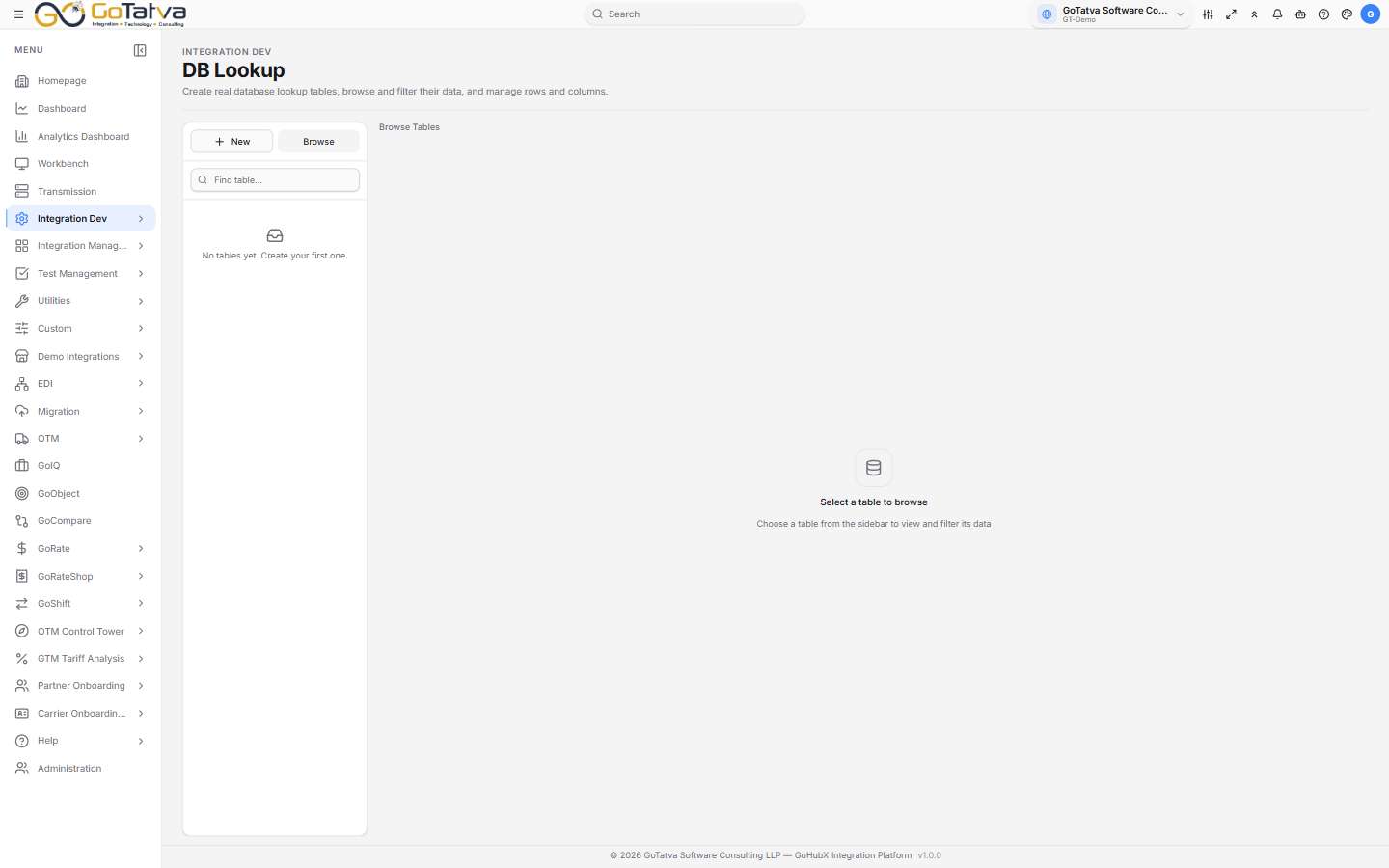
Tables on the left; the selected table's data on the right.
Lookup Tables are simple spreadsheet-style value lists, edited like a grid. DB Lookup creates actual database tables with data types and primary keys, for when the data is larger or needs real structure. They are separate stores - a table in one does not appear in the other.
Creating a table
Click New and fill in the Table Details:
| Field | Notes |
|---|---|
| Table name | Lower case with underscores, e.g. countries |
| Display name | What you will see in the list, e.g. Countries |
| Description | What the table holds |
| Icon color | So it stands out in the sidebar |
Then define the columns. Each needs a name and a data type - VARCHAR, TEXT, INT, BIGINT, DECIMAL, BOOLEAN, DATE, TIME or DATETIME - and you can mark it PK (primary key) and Nullable. Add column adds another row.
At least one column must be a primary key. The form will tell you if none is set.
As you work, the panel shows the SQL that will be run, so you can see exactly what is about to be created. Click Create Table when it looks right.
Starting from a file
Instead of typing the columns, use Import from file - a CSV or Excel file. The columns and their data types are detected from the contents and marked auto, and you can correct anything that was guessed wrongly before creating the table. A workbook with several sheets asks which one to use.
Browsing data
Pick a table from the sidebar, then the Data tab:
- Search all columns... searches across the table.
- Filters turns on a filter box under each column heading. A pill tells you how many are active, and Clear removes them.
- Page sizes are 25, 50 and 100.
- A long value gets an expand icon - open it to read the whole thing and Copy it.
Editing data
| Action | How |
|---|---|
| Add Row | Fills a dialog with one field per column. Leave auto-increment fields empty |
| Edit row | The pencil on a row, then Save or Cancel |
| Delete row | The trash icon, then confirm. This cannot be undone |
Changing the structure
The Schema tab lists the columns - name, type, whether each is a primary key and whether it is nullable.
Add Column takes a name, a data type, an optional length and a default value. Deleting a column removes its data too, and the confirmation says so.
The trash icon beside a table in the sidebar drops it and everything in it.
If the list is empty
No tables yet. Create your first one. appears when the project has no tables. If you have searched and nothing matches, the list simply shows nothing
- clear the Find table... box to bring them back.