GoSync
GoSync copies work from one project into another - the integrations, workflows, connections, maps, scripts, adapters, partner networks and canonicals you have already built. It is how a configuration moves from a build project to a live one without being rebuilt by hand.
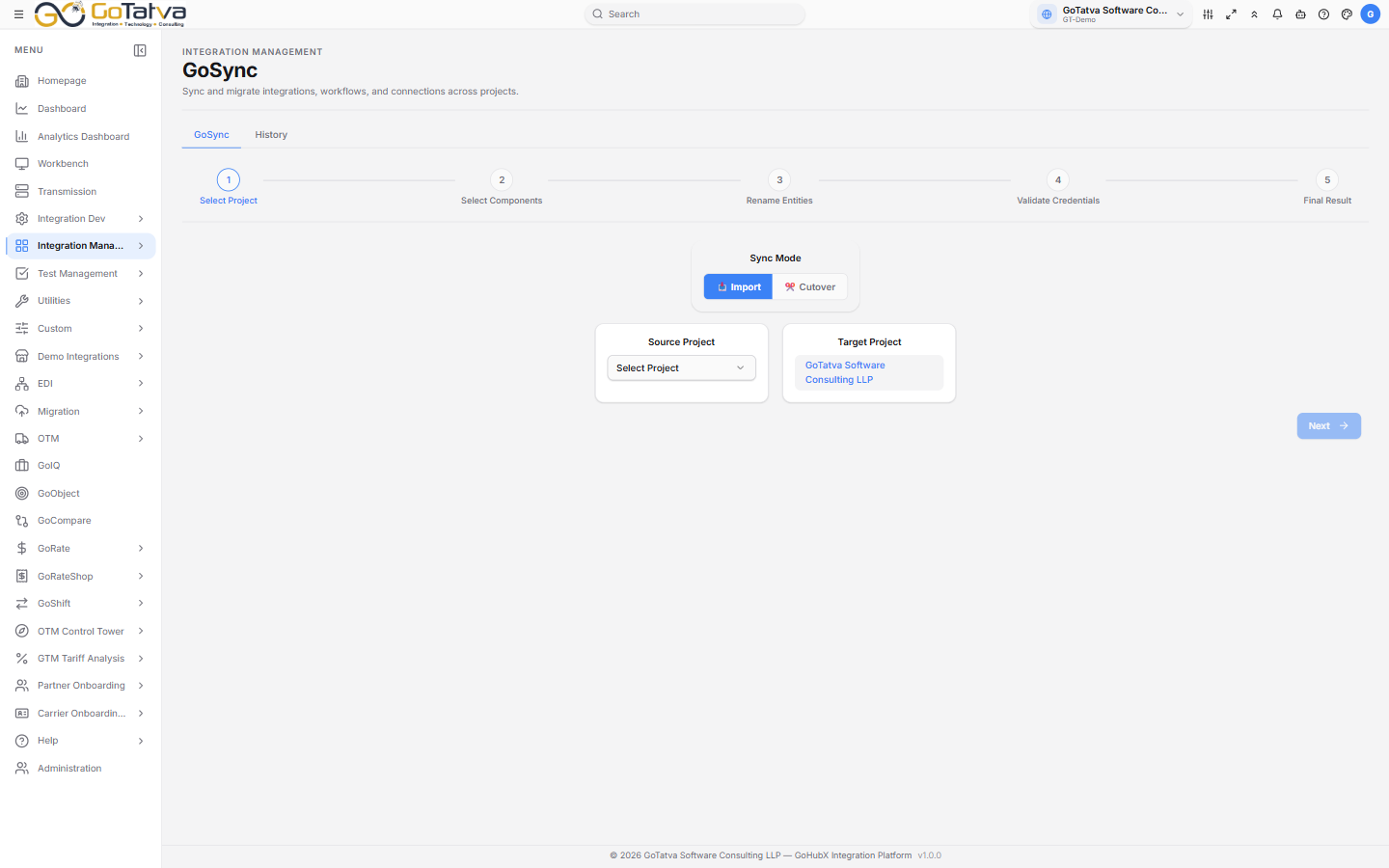
The migration wizard. The project you are signed in to is always the target.
The target is always your current project - it is shown, not chosen. Check the project selector at the top right before you start.
The five steps
The target is always the project you are signed in to.
1. Select Project
- Sync Mode - Import copies from another project in this environment. Cutover copies from another environment, and then asks which one.
- Source Project - where the work is coming from.
- Target Project - your current project, shown read-only.
- Select Component Types - what to bring: Integrations, Workflows, Connections, Maps, Scripts, Adapters, Partner Network, Canonical.
Next stays disabled until the source, the target and at least one component type are set.
2. Select Components
A tab per component type, each with two lists: what is Available on the left, what is Selected on the right. Move items across with the arrows, or double-click them.
Some items arrive in the Selected list on their own, marked Auto-included - these are the connections, adapters and maps a chosen workflow or integration depends on. Leaving them out would copy something that could not run.
3. Rename Entities
Every component you are copying, with its Source Entity Name and an editable Imported Entity Name. Change anything that would clash with a name already in the target project.
4. Validate Credentials
Connections carry no passwords between projects, so each one needs its credentials supplying here. Edit opens the connection - the fields depend on its type - and Save marks it Configured. Anything untouched stays Pending.
Saving marks a connection Configured without contacting the far end. A wrong password looks exactly like a right one at this step, and shows up only when the integration first runs. You can also continue with connections still Pending
- they will copy without credentials.
5. Review and finish
The final step lists everything that will be copied, with its current and new name. Give the run an Import Name so you can find it later, then Finish.
Checking what happened
Finish submits the migration and takes you to the History tab. The run appears there once the server has recorded it - use Refresh, or turn on Auto Refresh, if you do not see it immediately.
The wizard does not report the outcome. A migration that fails outright can look the same as one that is still starting, so treat the History row - not the end of the wizard - as the answer.
History lists each run with its ID, Import Name, Mode, Source Project, Target Project, Status and Timestamp.
| Status | Meaning |
|---|---|
| Initiated | Accepted, not started |
| In Progress | Running |
| Success | Everything copied |
| Partial Success | Some components copied, others did not |
| Failed | Nothing usable was copied |
| Cancelled | Stopped before finishing |
Open the eye icon on any row for the detail: how long it took, any warnings, a Failed Components table with the reason for each, and an Import Summary listing every object created and the ID it was given.
Anything under Partial Success or Failed is worth opening - the failed components table names exactly what did not make it.
What GoSync does not copy
Lookup tables, DB Lookup tables, Resources files and email templates stay where they are. Move those separately.