Resources
Resources is the project's file store. The scripts, workflows, maps and payloads that the other modules create all live here, in a folder tree you can browse, search and version.
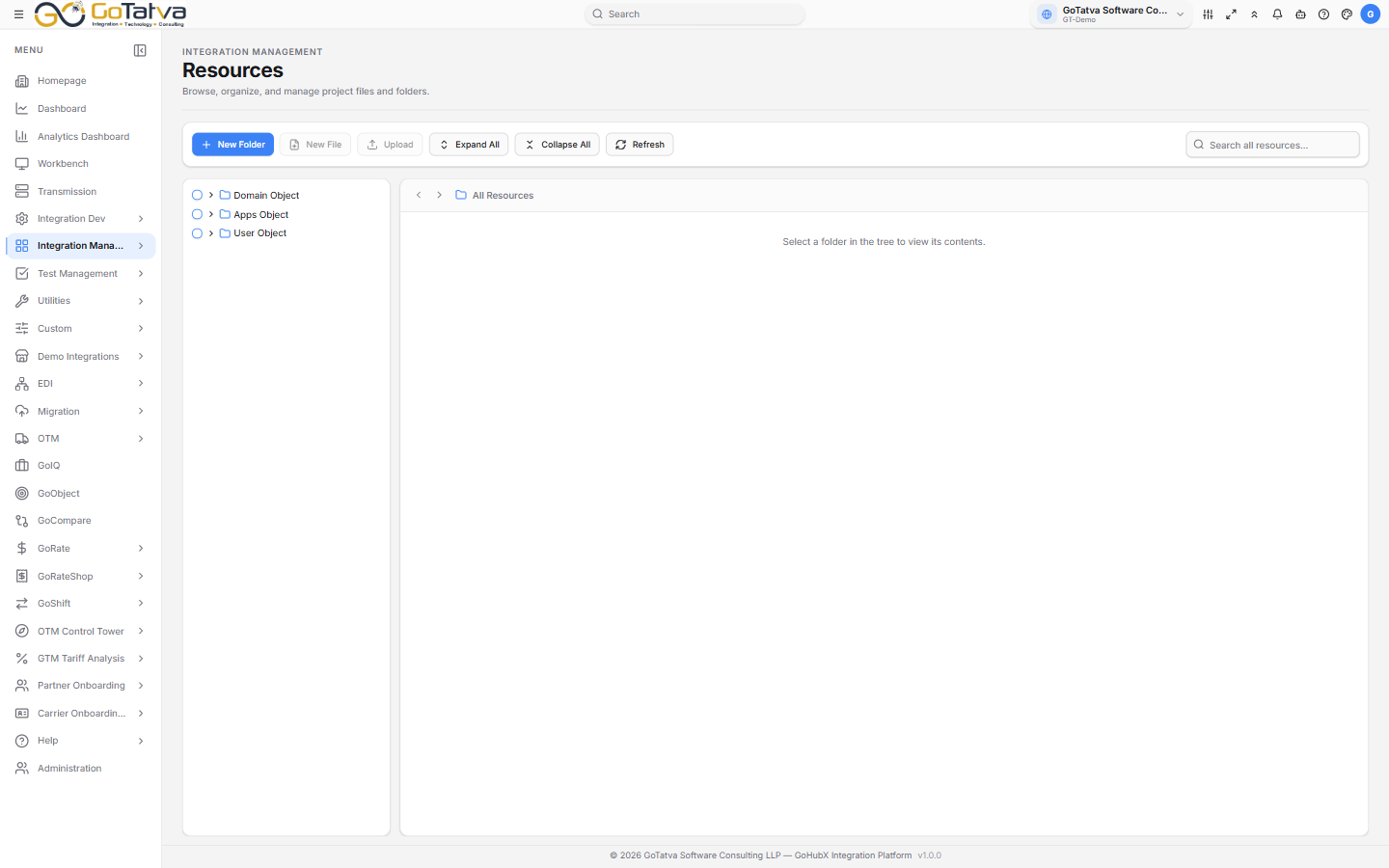
The folder tree on the left, the files in the selected folder on the right.
Finding a file
- Click a folder in the tree to list its contents on the right.
- Search all resources... searches the whole project, not just the folder you are in. Results show each match with its full path.
- The file list filters and sorts on ID, Name and Type - type in the row under the headings, and clear them with the icon at the end.
- Expand All / Collapse All open and close the whole tree.
- The breadcrumb above the list has Back and Forward arrows, so you can retrace your steps.
Working with files
| Action | Where |
|---|---|
| New Folder | Toolbar. Creates inside the selected folder, or at the root |
| New File | Toolbar. Give it a name and its starting content |
| Upload | Toolbar. Select a folder first - the button stays disabled until you do |
| Details | Row. ID, type, path, size, and who created and last changed it |
| Preview | Row. View as Auto, JSON, XML or Plain, and Copy the content |
| Download | Row |
| Versions | Row. Every saved version with its message, and a download per version |
| Move | Row, or drag the file onto a folder |
| Rename | Row. The file extension is kept for you |
| Delete | Row |
Editing a file
Open Preview and edit the content, then Save as new version. The previous version stays in Versions - nothing is overwritten.
Some file types are read-only in preview - workflows, scripts and maps are edited in their own modules, not here.
Files over 1 MB are not previewed. The dialog offers Download instead.
Working in bulk
Tick the checkboxes and a bar appears above the list: Download, Copy, Copy Names, Delete, and Clear.
Copy puts the items on an internal clipboard - a banner then tells you how many are held, and Paste drops them into whichever folder you select next.
System folders
Some folders belong to the platform - scripts, workflow, mapper,
test manager, the payload and log folders. They cannot be renamed, and their
delete action is disabled with the tooltip This item cannot be deleted.
Moving is restricted to the User Object folder. If a move is refused, this is why - the message reads "Move is only allowed within the 'User Object' folder."
If the tree is empty
No folders means either the project has no folders yet or they could not be loaded. Try Refresh first; if it stays empty, check with your administrator that the project has been set up.