Checklist Templates
A template is a checklist you can start again: the tasks it begins with, and the columns those tasks carry. Anything you run more than once — a go-live, a month-end, an onboarding — is worth saving as one.
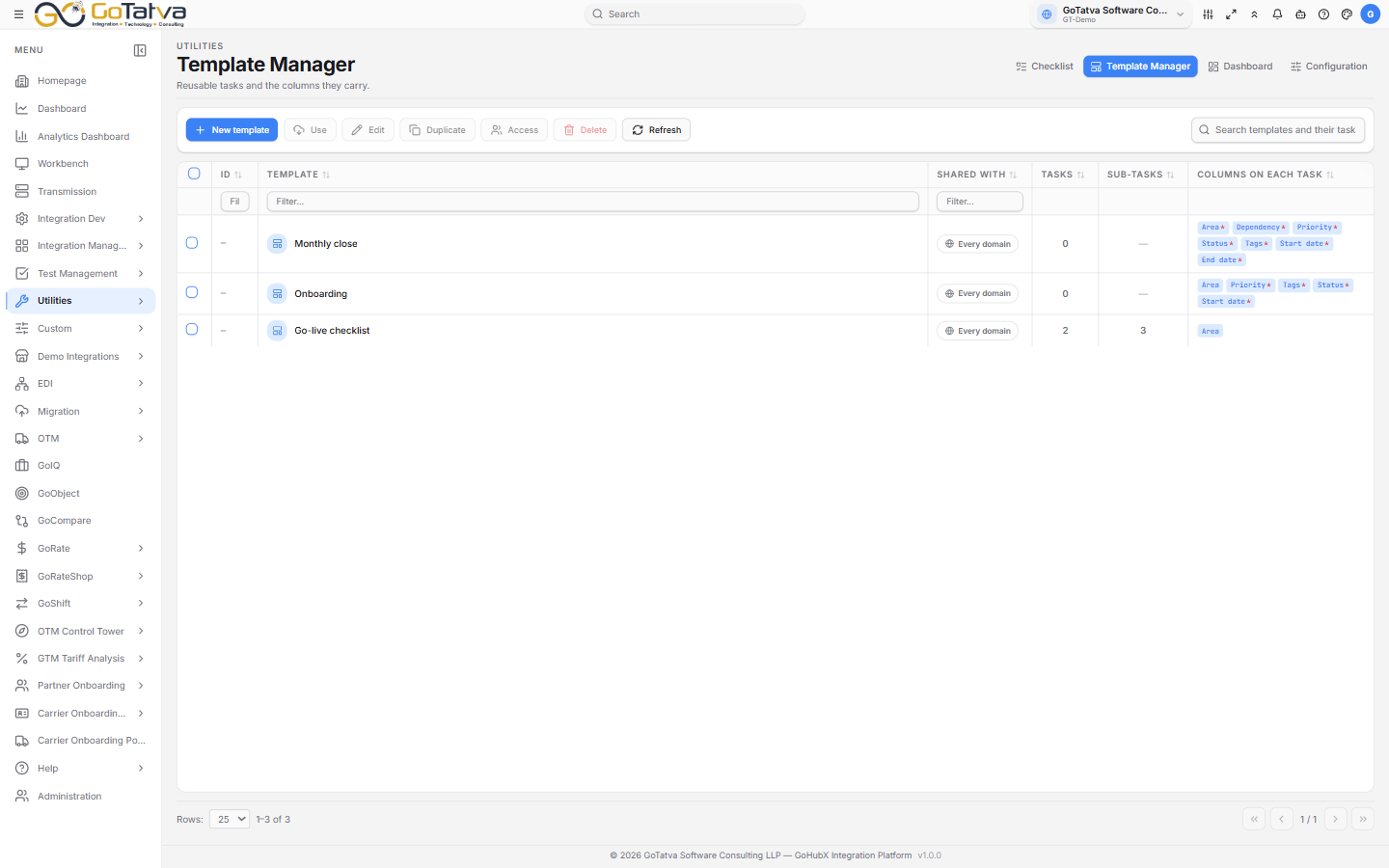
Each template shows who it is shared with, how many tasks it carries, and the columns those tasks will have.
Build it once, then start a checklist from it whenever you need one.
The list
| Column | Notes |
|---|---|
| ID | |
| Template | Click through to start a checklist from it |
| Shared with | Only me, Project, Domain or Every domain |
| Tasks | How many the template starts with |
| Sub-tasks | |
| Columns on each task | Shown as chips; a chip's tooltip says whether the column is required or fixed |
Search templates and their tasks matches both the template name and the task text inside it.
Actions
| Button | Notes |
|---|---|
| New template | Opens the builder |
| Use | Starts a checklist from the selected template — or just double-click the row |
| Edit | One at a time |
| Duplicate | One at a time |
| Access | Who the template is shared with — an administrator action |
| Delete | |
| Refresh |
Buttons stay visible when they do not apply and explain why on hover — "Select a template first", "You have read-only access to this one", "A personal template reaches nobody else, so there is nothing to share".
If your role cannot share templates, a Limited pill appears in the toolbar. You can still create your own templates and use any template you can see.
Building a template
The builder takes a name, the tasks, and the columns each task carries.
Columns. The library is grouped — Classification, Schedule, Tracking — with All and Custom filters over the top. Pick the ones the work actually needs; every column you add is a column someone has to fill in.
Tasks. Lay out the tasks, and sub-tasks under them where a step has parts.
Shared with. Only me, the project, the domain, or every domain. The last is restricted to platform administrators.
Save commits the template. Until you save, the button's tooltip reminds you there are unsaved changes.
Using one
Use — or a double-click — opens the start dialog and creates a new checklist from the template in the scope you choose. The checklist is a copy: editing it afterwards does not change the template, and changing the template does not reach back into checklists already started from it.
The Checklist page covers what happens next.