Record an issue
When something misbehaves, a recording says more than a description. This screen records what happens on screen while you reproduce the problem, transcribes what you say, and files a ticket with the clip attached.
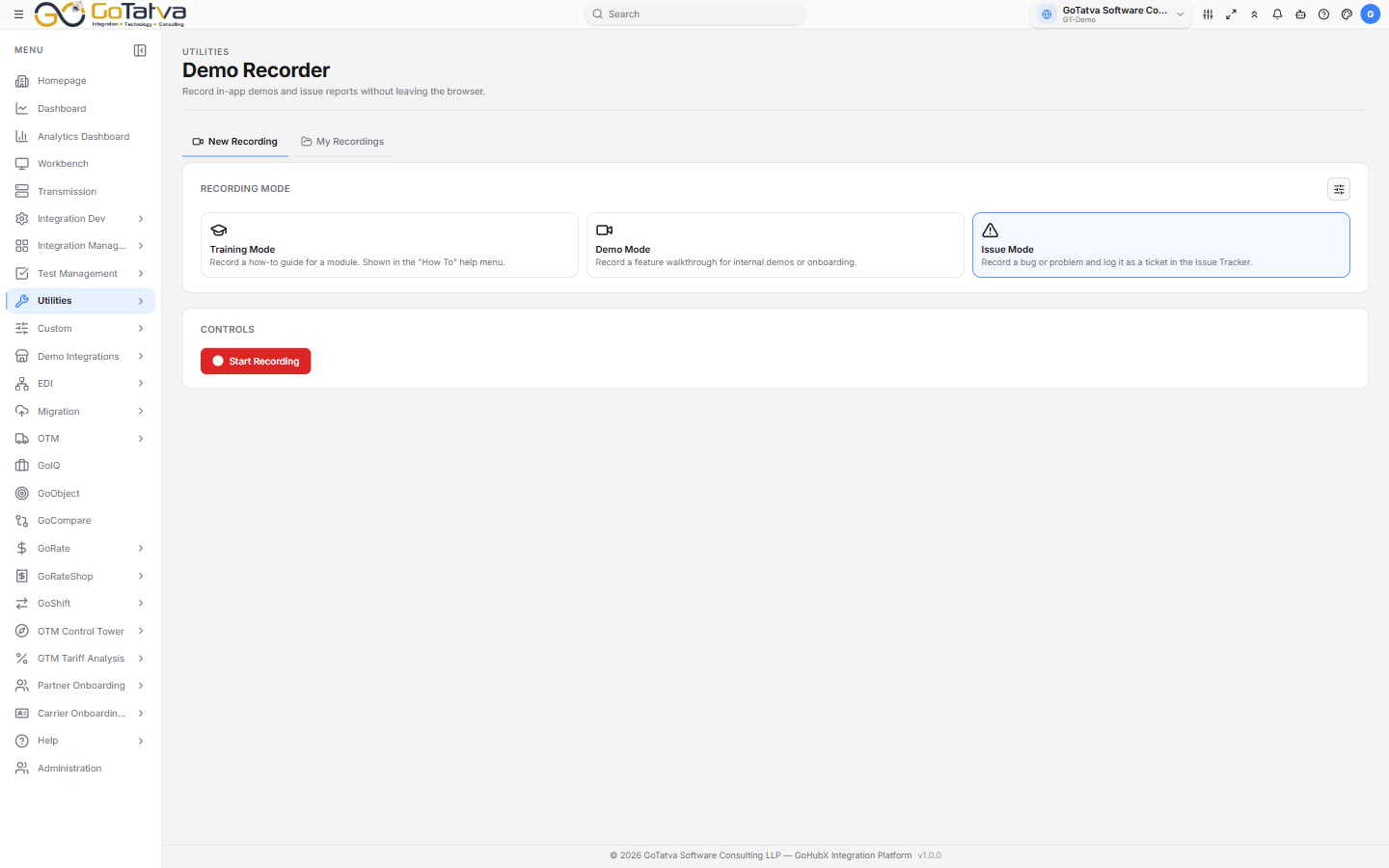
Choose Issue Mode, then start recording.
The recorder keeps running while you move around the platform.
Before you start
- Use a Chromium-based browser. The recorder asks permission to share the tab and to use the microphone, and you have to accept both prompts.
- Pick the right project in the top bar.
- Your administrator has to have given you Issue Mode. Without it the screen says so and offers nothing to record.
If you decline the microphone prompt the recording still runs, but with no audio — and so with nothing to transcribe. Accept it if you intend to talk through the problem.
Recording
- Open Demo Recorder from the navigation panel and choose Issue Mode.
- Start Recording. This arms the recorder rather than starting it — the browser asks which tab to share.
- Go to the screen where the problem happens and press Start recording on the floating button in the bottom-right corner. It stays with you as you navigate, so the whole path to the problem is captured.
- Pause and Resume as needed.
- Stop & Preview when you are done.
The badge in the page header tracks the state — ● READY, ● RECORDING, || PAUSED.
Filing the ticket
Stopping opens Log an Issue Ticket, with the clip on the left and Issue Details on the right:
| Field | Notes |
|---|---|
| Title | What went wrong, in a line |
| Description | Filled in from the transcription once it is ready; edit it freely |
| Priority | |
| Assignee | Someone on the project |
Log Ticket creates it. The recording is attached, so whoever picks the ticket up can watch the problem rather than reconstruct it.
If the transcription fails, the description is seeded with a note asking you to type one instead — the ticket is still raised.
My Recordings
The My Recordings tab lists what you have recorded, under an Issue sub-tab.
| Column | Notes |
|---|---|
| ID | Filterable |
| Title | Untitled clips show as Untitled |
| Transcription | Done, Pending or Failed |
| Ticket | The ticket it raised — click through to open it |
| Duration | |
| Size | |
| Recorded |
Reload refreshes the list, Preview plays the selected clip, and Delete removes it.
Related
Tickets raised here land in the ticketing system, where they are worked like any other. The Ticket column links straight to the one a recording raised.