Properties
Properties are the configuration values the platform reads at run time — the homepage title, feature switches, per-user preferences. They are layered, and the layer decides both who the value applies to and who is allowed to change it.
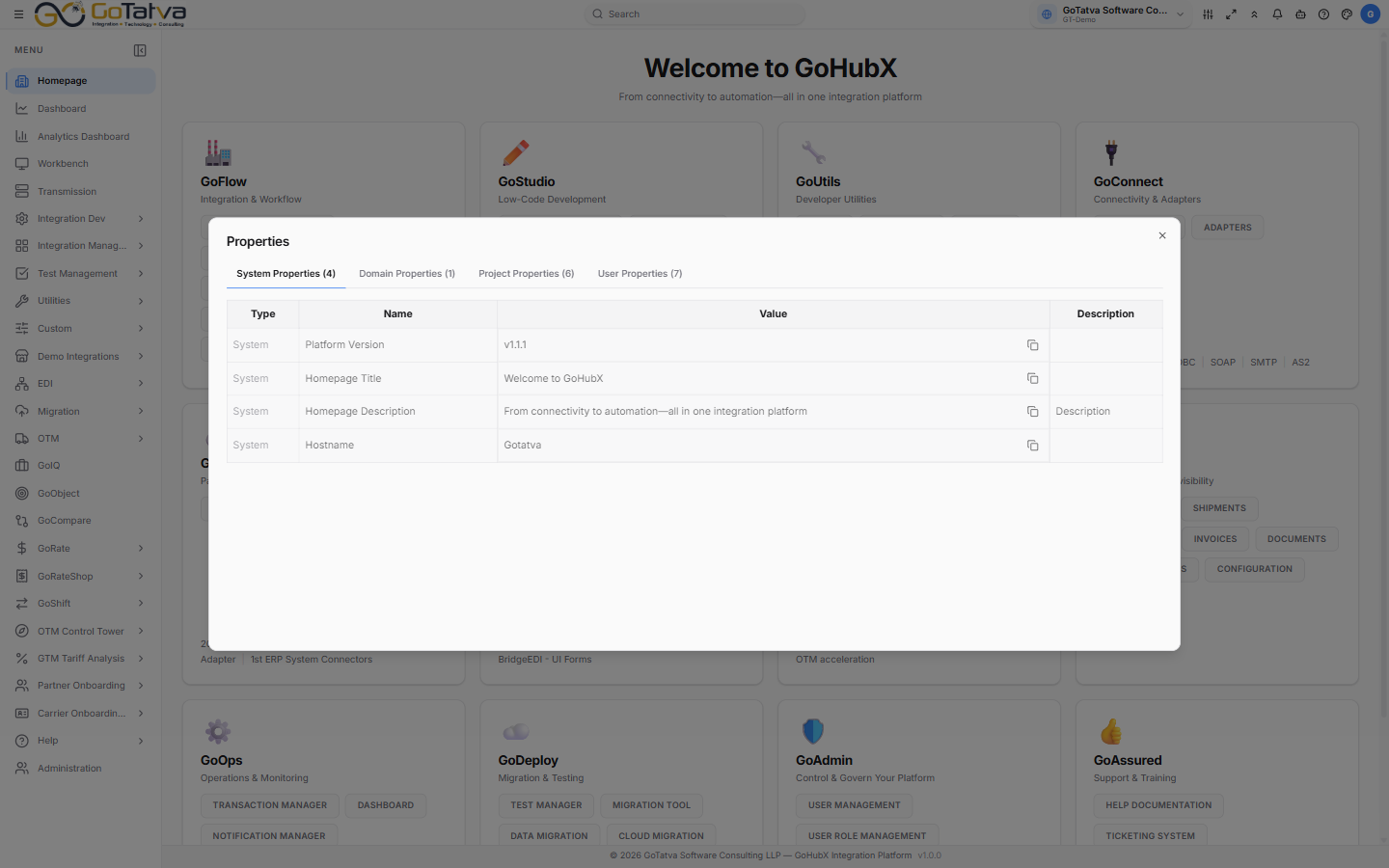
The same view opens from the Properties button in the top bar.
Where to find it
Either the Properties button in the top bar, which opens it as a dialog, or the Properties entry in the navigation panel, which opens the same thing as a full page. They show exactly the same data.
The four tabs
Each tab carries a live count of the values it holds.
| Tab | Applies to | Who can change it |
|---|---|---|
| System Properties | The whole platform | Platform administrators only |
| Domain Properties | Everyone in the domain | Administrators |
| Project Properties | The selected project | Administrators |
| User Properties | You | Nobody — read-only for everyone |
Switching tabs reloads only that tab.
Columns
| Column | Notes |
|---|---|
| Type | System for a platform-defined value, User for one an administrator added |
| Name | |
| Value | With a Copy value button that ticks when copied |
| Description | |
| Host name | Only on the System tab, and only on multi-brand domains |
The User Properties tab shows Name and Value only.
Changing a value
Where you have the rights, each row carries a pencil to edit it in place and a red X to delete it. The first row of the table is an inline add form — Name, Value, Description, and a host name where the column applies — with a tick to save and a cross to cancel.
Rows you cannot change are greyed out rather than hidden, so you can still read the value and copy it.
Properties are read by the platform at run time. Renaming or deleting one that a feature depends on takes that feature's configuration away with it. Copy the old value before you change it.
What else lives here
Some features keep their configuration as properties rather than giving it a screen of its own, so this is where an administrator turns them on:
- Who can use each mode of Record an issue.
- Whether training recordings can be downloaded.
- The homepage title and description.
If the list does not refresh
A failed refresh leaves the tab showing what it last loaded, without a message. Switch tabs and back, or reopen the screen, if a value you just changed is not reflected.